Short answer: Start in Free Flight, not Career Mode: Cessna 172, a small airport, clear skies at midday, on the runway with all assists on. Throttle up with R2, rotate at about 55 knots, climb at 74, level off at 2,500 ft, land at 65–70 knots with full flaps. Every edition includes the C172; PSVR2 support came free with Sim Update 5.
Affiliate disclosure: This guide contains affiliate links. If you purchase through these links, SimTuts earns a small commission at no extra cost to you. We only recommend products we genuinely believe improve the flight sim experience.
Welcome. If you bought Microsoft Flight Simulator 2024 on PlayStation 5, or you are about to, this guide is for you. Specifically: you are not a PC enthusiast, you do not own a yoke or rudder pedals, you have a DualSense controller and maybe a PSVR2 headset, and you have never seriously flown a flight simulator before. That is the audience. We will treat you like a smart adult who has just never seen a cockpit.
Sim Update 5 was the moment everything changed for PS5 owners. It shipped on 30 April 2026 and brought two big things: PlayStation VR2 support for every aircraft in the sim, and a PS5 marketplace finally open to third-party add-ons. If you have been waiting to dive in, there has never been a better time.
This guide gives you a real path through the first ten hours: how the DualSense maps to a cockpit, what to fly first, when to bother with Career Mode, when to put the PSVR2 on, what to buy from the marketplace, and ten specific first flights that build skills in the right order.
Is MSFS 2024 a game or a hobby?
Both, but mostly a hobby. This is not a game you "beat." There is a Career Mode with progression, and there are missions, but the heart of Flight Simulator is choosing where you want to fly, picking an aircraft, and flying it well. People put hundreds of hours into this sim and feel like they have just started.
That changes the mindset you should bring. You are not trying to win. You are trying to learn one small thing each flight. Your first hour, you might just take off and land at the same runway five times. That is a successful hour.
What you get on PS5
There are four editions on the PlayStation Store: Standard ($69.99), Deluxe ($99.99), Premium Deluxe ($129.99), and Aviator ($199.99). The aircraft count climbs with each tier, from 70 in Standard up to 125 in Aviator. For your first ten flights, the Standard edition has more aircraft than you will touch. The Cessna 172 you will live in for a week is in every edition.
A few things to know going in:
- It is a big download. Plan for tens of gigabytes plus a streaming connection during play. The world data streams from the cloud.
- You need PlayStation Plus for online multiplayer features, but you do not need it to fly.
- PSVR2 support is a free update that arrived with Sim Update 5. You do not pay extra for it.
DualSense controls: what each button does
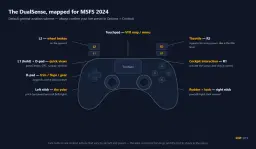
The DualSense is genuinely good for flying once you know the basics. Here is the mental model. The exact bindings can be remapped in Settings > Controls, but the defaults work for the Cessna out of the box.
- Left stick: pitch (up/down to point the nose down/up) and roll (left/right to bank).
- Right stick: rudder (left/right) and view look (up/down adjusts the seat or look angle, depending on context).
- R2 trigger: throttle. Pull harder for more power.
- L2 trigger: brakes when on the ground. In the air, often mapped to spoilers or other secondary functions depending on aircraft.
- L1 + D-pad: quick views. Great for snapping to instruments before landing.
- R1: cockpit interaction / cursor click.
- Touchpad: menu / map.
- Options button: pause and main menu.
The DualSense does some flight-sim-specific things that PC users do not get for free:
- Adaptive triggers push back differently depending on aircraft state. On the ground at high speed, R2 feels stiffer. In the air it gives you sloped resistance so you can feel the throttle position.
- Controller speaker plays ATC voices through the DualSense itself, like a tinny cockpit radio. It sounds odd at first, then becomes immersive.
- Gyro controls let you tilt the controller like a yoke for fine roll inputs. Most beginners turn this off until they are comfortable. You can tune its sensitivity and dead zones in the controller settings.
- Lightbar and touchpad can be customised in settings.
One thing the search results on every forum will tell you: spend ten minutes in Settings > Accessibility adjusting cursor speed and acceleration. The default cursor for clicking cockpit switches is too slow for some players and too fast for others. Make it feel right before you fly.
Your very first flight: the only one that matters
Open Free Flight, not Career Mode. Pick the Cessna 172 Skyhawk. Pick a small airport you recognise from a road trip or holiday. Set the weather to "Clear Skies" and time to midday. Set the start position to "On Runway." Turn all the assists on for now (you can turn them off later, one at a time).
Your goal: take off, fly a wide circle, land back on the same runway. Nothing else.
Here are the C172 numbers you actually need. These come from the real Cessna 172S pilot operating handbook, and they work in the sim too:
- Rotation speed (Vr): about 55 knots. Pull gently back on the left stick, do not yank.
- Best climb speed (Vy): 74 knots. Hold the nose so the airspeed sits there.
- Best angle of climb (Vx): 62 knots. You only need this for short runways with obstacles.
- Approach speed: 60-70 knots with full flaps. Aim for around 65 over the threshold.
- Stall is around 40 knots indicated in landing configuration. Stay well above that.
A typical pattern: throttle up smoothly, hold the nose level, let the speed build, gently rotate at 55, climb at 74. Level off at 2,500 feet. Fly straight for a minute. Bank gently to the left until you have turned 180 degrees. Fly back parallel to the runway. Bank again until lined up with the runway. Reduce throttle, drop flaps in stages (10, 20, then full), aim for 65 knots, idle the throttle just before the threshold, flare gently as the runway rises to meet you.
You will probably bounce. You will probably land long. That is fine. Do it again. The third time will be better than the first.
Career Mode vs Free Flight: which to start with?
Both are valid. Here is the honest difference.
Free Flight is the sandbox. You pick the aircraft, the airport, the weather, the time of day. There are no objectives. This is where you learn. Most experienced sim pilots fly in Free Flight 90% of the time.
Career Mode wraps a progression system around the same flying. You make a pilot avatar, pick a home airport (a small or mountainous one makes the early game harder), and earn certifications by completing training and exam flights. As you progress you unlock mission types like air ambulance, cargo runs, search and rescue, VIP charter, and aerial firefighting. You earn money, buy aircraft, eventually start your own company.
The catch on PS5 (and everywhere): not every aircraft in the sim is supported in Career Mode, and third-party marketplace planes are not consistently available there. So Career Mode is great for structure but you will hit walls the sandbox does not have.
Recommendation: do your first three or four flights in Free Flight to get comfortable. Then start Career Mode for structured progression. Use Free Flight whenever you want to explore something specific. We have a deeper look in our Career Mode guide and a breakdown of which aircraft to use in Career Mode once you are ready to get serious.
PSVR2 setup: when to use it, when to take it off
This is the headline feature for PS5 in 2026. Since Sim Update 5, every aircraft in the sim works in PSVR2 — up to 125, depending on your edition. The development team redesigned every cockpit interaction for the PSVR2 Sense controllers — knobs, switches, levers all become things you reach out and grab in 3D space rather than cursors you click. They use foveated rendering (Flexible Scaled Rasterization) and a frame-duplication technique to hit acceptable framerates on PS5 hardware, and you can hide the HUD in VR alone while keeping it for flat-screen play.
When PSVR2 is great:
- Low-and-slow general aviation. A Cessna 172 over your home town in VR is the closest most of us will get to actually flying.
- Helicopters. The Guimbal Cabri G2 in particular has been highlighted by the dev team for its peripheral vision and immersion in VR.
- Aerobatics and short flights. The Red Bull Air Race aircraft in VR are striking.
When PSVR2 is hard:
- Long flights. Even with comfort, an hour in any VR headset is a lot.
- Reading small instruments and FMS screens. Resolution is good but not infinite. Airliner FMS work is often easier on flat screen.
- Your first ever flight. Learn the basics flat first. Putting on a headset before you understand the controls just doubles the disorientation.
Practical comfort tips: take the headset off every 20-30 minutes the first few times. Sit with your back against a chair. Keep the room cool. If you feel queasy, land immediately and stop. Most people adapt within a few sessions.
Get flight sim tips in your inbox
New guides, checklists, and tips. No spam. Unsubscribe any time.
The PS5 Marketplace: what to buy first (and what to skip)
Until Sim Update 5, the PS5 marketplace was first-party only. With SU5, third-party add-ons started arriving. Asobo has been clear that not every PC add-on will appear immediately — each one has to pass Sony's platform and performance requirements, including testing on PS5 hardware, and some needed changes to run there. SU5 opened with a first selection, and more have been rolling in since.
A few honest rules:
- Wait two weeks before buying anything expensive. Read the reviews on the MSFS forums. Console-ported add-ons sometimes have early issues that get patched fast.
- Free content first. There are free city updates and world updates from Microsoft directly. Download those before paying for anything.
- Buy airports you actually fly into. A beautifully detailed scenery package for an airport you never use is wasted money.
- Avoid complex study-level airliners on day one. A photoreal Boeing 777 add-on is exciting until you realise you need 60 hours of training to start the engines. Stick to the in-sim aircraft until you genuinely outgrow them.
What about hardware add-ons on PS5? At launch the only officially supported flight stick was the Thrustmaster T.Flight HOTAS 4, with Thrustmaster T.Flight Rudder Pedals connecting through the HOTAS. The T.Flight HOTAS 5 Microsoft Flight Simulator Edition followed in June 2026. Since Sim Update 6 in August 2026, the sim gives the HOTAS 5 a ready-made profile on PS5 only in its blue-LED PS4 mode; in its red-LED PS5 mode, the factory default, you build a custom profile. Thrustmaster's TCA Sky Yoke, which Thrustmaster markets as the first PS5-compatible yoke, has an announced release date of 28 October 2026. It comes in two editions at the same price: for a PS5, buy the PlayStation / PC edition, not the XBOX / PC one. PC hardware such as Honeycomb yokes and Virpil throttles is not in Microsoft's PS5 hardware guidance, so do not expect it to work on PS5. Our PS5 flight sticks and yokes guide has the current line-up.
If you are leaning toward serious airliner flying eventually, the best hardware for airliners guide covers what you would want on PC. On PS5, save your money for now and master the DualSense.
Charts, navigation, and SimBrief: do you need them?
Short answer: not yet. Here is the longer answer.
In real aviation and in serious sim flying, pilots use charts (printed or digital maps of airports and approach procedures), they file flight plans with services like SimBrief, they program a Flight Management Computer in airliners, and they navigate using radio aids and waypoints. This is where most people get overwhelmed and quit.
You do not need any of that to fly the Cessna VFR (visual flight rules) between two airports you can see. The in-sim map and GPS are enough. When you eventually want to fly an Airbus A320 from London to Paris with proper procedures, you will need to learn that workflow. We have guides for that when you are ready: SIDs and STARs explained, SimBrief to FMC workflow, and ILS approaches in MSFS.
For your first ten flights: ignore all of it.
Your 10 progressive first flights
Each one builds on the last. Try them roughly in order. Use the Cessna 172 unless noted.
Flight 1 — Pattern at a familiar airport. Pick a small airport near where you live. Take off, fly a wide circle, land. Do this five times in a row. You are learning takeoff, climb, descent, and a basic landing. Suggested: any small airport with a single runway and clear weather.
Flight 2 — Same airport, light crosswind. In the weather menu, add 5-knot wind from a direction perpendicular to the runway. Notice how you have to crab into the wind on approach. The aircraft will not behave the same as flight 1. That is the point.
Flight 3 — Short cross-country. Pick a second airport about 20-30 nautical miles from your first one. Use the in-sim map to plan a straight-line route. Fly between them. Land at the new one. Take off and fly back. You are now navigating, not just patterning.
Flight 4 — Night flight. Same as flight 3, but at night. Lights everywhere, visibility down. Notice what you can and cannot see. Land using the runway lights.
Flight 5 — Mountain or coastal scenery. Pick somewhere visually striking. Innsbruck (LOWI) for mountains, Nice (LFMN) for coast, Queenstown (NZQN) for both. Fly a sightseeing loop. No landing required if the airport scares you. This flight is to remind you why you bought the sim.
Flight 6 — First ATC interaction. Fly any short hop with the in-sim ATC turned on. Listen, follow the instructions, do not panic if you make a mistake. The AI ATC is forgiving. We have a phraseology guide if you want a reference.
Flight 7 — Try a different aircraft. Switch from the Cessna 172 to something else simple. The Cessna 152 if you want similar but tighter, or the Diamond DA40 if you want a slightly more modern panel. Notice what is different. Notice what is the same.
Flight 8 — Your first instrument approach. Back in the C172, load up an airport with an ILS approach. Set the weather to overcast with a low cloud base. Use the autopilot and the G1000 (the digital cockpit panel) to follow the ILS to the runway. This is your first taste of "real" instrument flying. The G1000 avionics guide will help.
Flight 9 — Helicopter for an hour. Pick the Guimbal Cabri G2 or the Robinson R66. Helicopters are completely different. You will probably be terrible. That is expected. Hover practice for 30 minutes will teach you more about flight controls than 10 hours in a Cessna. The helicopter guide walks through the basics.
Flight 10 — A jet. Now try one of the included airliners — the Airbus A320neo or the Boeing 737 MAX 8 — or the Cessna Citation Longitude if your edition has it. Short flight, simple route. Notice the speeds, the workload, the way the autopilot does most of the work. This is where Career Mode and the proper airliner guides start to make sense.
If you make it through these ten flights, you have a real foundation. You will know whether you want to specialise in GA, helicopters, or airliners. You will know whether you want to spend money on a HOTAS or stay with the DualSense.
Where to go from here
Once you are comfortable with the basics, these are the guides that will matter most as you progress:
- MSFS 2024 Beginner Guide — broader companion to this one.
- Career Mode complete guide — when you are ready for structure.
- MSFS 2024 graphics settings — squeeze the best out of PS5 hardware.
- VR flight sim setup guide — once you have spent some time in PSVR2.
- ILS approaches — your first instrument approach.
- Beginner mistakes to avoid — saves you from the common traps.
Frequently asked questions
Is MSFS 2024 free on PS5?
No. The Standard Edition is $69.99 on the PlayStation Store, with Deluxe at $99.99, Premium Deluxe at $129.99, and Aviator at $199.99. The differences are the number of included aircraft and bespoke airports.
Do I need PSVR2 to play?
No. The simulator is fully playable on a flat screen with the DualSense controller. PSVR2 support is a free optional upgrade that arrived with Sim Update 5. Many players prefer flat screen for long flights and switch to VR for short scenic ones.
Can PS5 use third-party add-ons?
Yes, since Sim Update 5 (30 April 2026). Each third-party add-on has to pass Sony's platform and performance requirements before it appears on the PS5 marketplace, so the catalogue is smaller than PC's and grows over time.
Can I use a real flight stick or yoke on PS5?
At launch the only officially supported flight stick was the Thrustmaster T.Flight HOTAS 4, with Thrustmaster T.Flight Rudder Pedals connecting through it. The T.Flight HOTAS 5 Microsoft Flight Simulator Edition joined it in June 2026; since Sim Update 6 it gets a ready-made profile on PS5 in its blue-LED PS4 mode and needs a custom profile in its red-LED PS5 mode. Thrustmaster's announced release date for the TCA Sky Yoke, which it markets as the first PS5-compatible yoke, is 28 October 2026. For a PS5, buy the PlayStation / PC edition, not the XBOX / PC one. The wider PC ecosystem of yokes and throttles is not in Microsoft's PS5 hardware guidance, so do not expect it to work on PS5.
Is Career Mode the best place to start?
Not for your first few flights. Use Free Flight to learn how the aircraft handles without time pressure or objectives. Once you are comfortable with takeoff, level flight, and landing, Career Mode adds structure and progression — start there for your fourth or fifth flight.
Will my PSVR2 make me motion sick?
It can, especially if you do aerobatics or fast manoeuvres early. Start with a Cessna 172 in calm weather, take the headset off every 20-30 minutes, and stop immediately if you feel queasy. Most players adapt within a few sessions.
What is Sim Update 5 and why does it matter?
Sim Update 5 is the free update released on 30 April 2026 that opened the PS5 marketplace to third-party add-ons for the first time and brought PSVR2 support to every aircraft in the sim. It also added the Working Title Avidyne IFD 540 and IFD 550 navigators, weather radars with a tilt function, and thousands of bug fixes. Aircraft and Avionics Update 4 (reworked ATR 42/72, Antonov An-2, Latécoère 631, Fokker F.VII, Savoia-Marchetti S.55) followed separately on 5 May, and Sim Update 6 followed in August 2026.