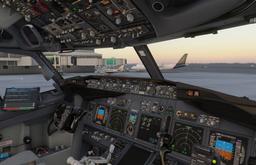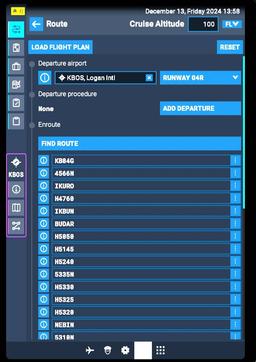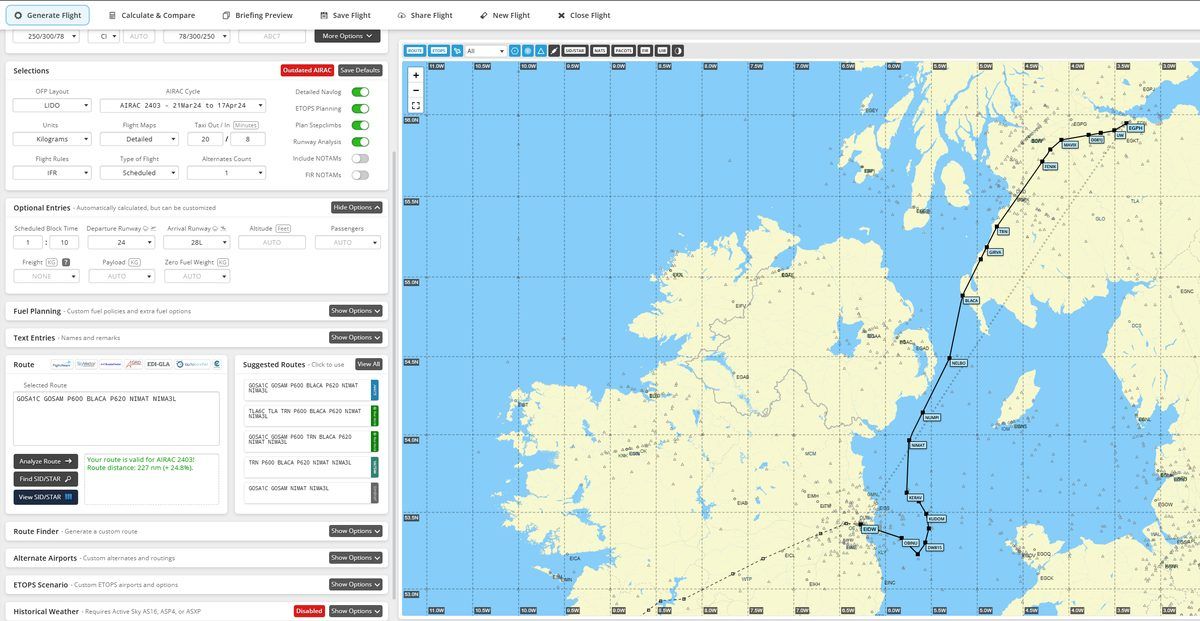
You generated a SimBrief flight plan. You have a PDF full of numbers, abbreviations, and a route string that looks like alphabet soup. Now you're sitting in the cockpit of your PMDG 737 or A320, staring at a blank FMC, with no idea how to get that plan into the aircraft and actually use it.
This is the guide that bridges that gap. Not just "press this button to import" -- the full workflow. What every number on the OFP means, why it matters, how to get it into your aircraft's flight management system, and how to verify that everything matches before you push back. By the end, you'll treat SimBrief as what it actually is: your dispatcher.
Want to practise the FMC side first? Our free A320 MCDU Trainer and 737 CDU Trainer let you drill route entry and performance setup in your browser — no sim needed.
What SimBrief Is (And Why You Need It)
SimBrief is a free, browser-based flight planning tool that generates realistic Operational Flight Plans (OFPs). It does the same job as a real airline's dispatch department: calculating routes, fuel requirements, optimal altitudes, alternate airports, weight and balance, and expected weather conditions along the way.
Without SimBrief, you're guessing. How much fuel do you need for a London to Barcelona flight in a 737-800? Is 10,000 kg enough? Too much? If you hit headwinds, will you make it? What's the alternate airport if Barcelona is fogged in? SimBrief answers all of this with actual performance data for your specific aircraft type, using real-world weather, real NOTAMs, and real navigation databases.
The output -- the OFP -- is a document that real pilots receive from dispatch before every flight. Learning to read it and use it is not just about pressing buttons in the sim. It's about understanding the operational thinking behind every commercial flight.
Here's what SimBrief generates for you:
- Route: The exact waypoints, airways, SID, and STAR for your flight
- Fuel plan: Block fuel, trip fuel, reserves, alternate fuel, taxi fuel -- all broken down
- Weight and balance: Zero Fuel Weight, takeoff weight, landing weight
- Performance data: Cost index, cruise altitude, step climbs
- Weather: Winds aloft, METARs, TAFs for departure, destination, and alternates
- NOTAMs: Relevant notices for your airports and route
Every number on that OFP has a purpose, and most of them go directly into your FMC.
Setting Up SimBrief Properly
Before you generate a single flight plan, you need to configure SimBrief correctly. Bad settings here mean bad numbers everywhere downstream -- wrong fuel loads, wrong weights, wrong performance.
Creating Your Account
Go to simbrief.com and create a free account. Your SimBrief Pilot ID (a six or seven digit number found in your account settings) is what addon aircraft use to pull your flight plans. Write it down or memorise it -- you'll enter it into the PMDG EFB, Fenix EFB, or FlyByWire settings later.
Linking Navigraph (Optional but Recommended)
If you have a Navigraph subscription, link it in SimBrief's account settings under "Navigraph Account." This gives SimBrief access to the latest AIRAC (Aeronautical Information Regulation And Control) navigation data cycle -- the database of airways, waypoints, procedures, and frequencies that the aviation world updates every 28 days.
Without Navigraph, SimBrief uses a free but older AIRAC cycle. This usually works fine for route generation, but you may encounter mismatches: SimBrief generates a route using waypoint ABCDE, but your aircraft's FMC (which might have a newer database from Navigraph) doesn't recognise it, or vice versa. More on this later.
Setting Your Aircraft Type
This is critical. In your SimBrief settings (or when creating a flight plan), you choose an aircraft type from the fleet library. SimBrief uses this to determine:
- Fuel burn rates at various altitudes and speeds
- Maximum weights (MTOW, MLW, MZFW)
- Range and performance envelopes
- Engine type and thrust characteristics
If you're flying the PMDG 737-800, select the B738 (Boeing 737-800) profile. If you're flying the Fenix A320, select A320 with the appropriate engine variant (CFM56 or IAE V2500 -- check which engine your Fenix is configured for).
Common mistake: Using the wrong aircraft type. If you plan a flight as an A320 but fly a 737-800, the fuel calculations will be off by potentially thousands of kilograms. The aircraft have different burn rates, different maximum weights, and different performance characteristics. Always match SimBrief's aircraft to what you're actually flying.
SimBrief also lets you create custom airframes with specific modifications (different engine types, fuel tank configurations, weight variants). For most sim flying, the default profiles are fine.
Airline Profiles and Flight Numbers
You can set up an airline profile in SimBrief -- company ICAO code, callsign prefix, and default flight number format. This is purely cosmetic for sim purposes, but it makes your OFP look professional and helps if you fly on VATSIM (where you need a callsign).
For example, setting your airline to BAW (British Airways) means your flight plans will use the BAW callsign prefix. Set it to whatever you like, or leave it blank for a generic plan.
AIRAC Data: Why It Matters
The AIRAC cycle is the standardised navigation database that defines every airway, waypoint, procedure, and frequency in the world. It updates every 28 days. When SimBrief and your aircraft's FMC use the same AIRAC cycle, everything matches perfectly. When they don't, you get problems:
- SimBrief routes you via an airway that was renamed or removed in a newer cycle
- A waypoint in SimBrief's route doesn't exist in your FMC's database
- SID/STAR procedures have been updated, and the one SimBrief suggests doesn't match what your FMC offers
The fix is straightforward: keep SimBrief and your aircraft addon on the same AIRAC cycle. With Navigraph, both update automatically. Without it, just be aware that occasional mismatches are normal and you'll need to work around them.
Creating a Flight Plan in SimBrief
Let's walk through building an actual flight plan. We'll use London Heathrow (EGLL) to Barcelona El Prat (LEBL) as the example -- a typical short-haul European route.
Step 1: Enter Origin and Destination
On the SimBrief dispatch page, enter:
- Origin: EGLL
- Destination: LEBL
SimBrief will auto-populate airport information including available runways, current weather, and NOTAMs.
Step 2: Choose a Route
You have three options:
-
Suggested Routes: SimBrief offers routes that other users have recently filed for this city pair. These are usually sensible and based on real-world routings.
-
Auto-Route (Generate): Let SimBrief calculate the optimal route based on current winds, airspace restrictions, and distance. This usually produces a good result, though it won't always match real-world preferred routings.
-
Manual Entry: Type the route string yourself. Useful if you have a specific routing from a real-world source or VATSIM controller preference.
For most flights, the suggested routes or auto-route work well. You'll see something like:
EGLL/27R WOBUN N14 WAFFU UN57 SUPAP UN857 DIKRO DIKRO2A LEBL/25R
This reads: Depart Heathrow runway 27R, via waypoint WOBUN, airway N14 to WAFFU, airway UN57 to SUPAP, airway UN857 to DIKRO, DIKRO2A arrival into Barcelona runway 25R.
Don't worry if you can't parse this yet -- you'll learn to read route strings naturally with practice. The important thing is that SimBrief has chosen a route and calculated everything based on it.
Step 3: Set Cruise Altitude and Cost Index
Cruise Altitude: SimBrief suggests an optimal altitude (typically FL350-FL390 for a short-haul jet). You can override this, but the suggestion is based on aircraft performance, distance, and winds aloft. For short sectors under 500nm, FL340-FL360 is common. For long-haul, FL380-FL410.
Cost Index (CI): This is a number that tells the FMC how to balance speed versus fuel efficiency. The range varies by aircraft type — 0-500 for the 737NG, 0-9999 for the 777, and 0-999 for the A320. A low cost index (say, 25) means "save fuel, fly slower." A high cost index (say, 80) means "time matters more, fly faster." Airlines set this based on fuel cost vs. crew cost economics.
For sim flying, a cost index between 30-50 is a reasonable middle ground. If you want to fly like a budget airline, go lower. If you want to fly like a premium carrier, go higher. The cost index directly affects your cruise speed, fuel burn, and flight time.
| Cost Index | Behaviour | Typical User |
|---|---|---|
| 0-15 | Maximum fuel savings, slowest cruise speed | Long-haul fuel conservation |
| 20-40 | Good fuel economy, slightly below optimum speed | Budget airlines, typical sim flying |
| 40-60 | Balanced speed and fuel | Full-service carriers |
| 60-80 | Faster cruise, higher fuel burn | Time-critical operations |
| 80-100+ | Near maximum speed, fuel is secondary | Short sectors, schedule recovery |
Step 4: Alternate Airport Selection
Every commercial flight needs an alternate -- an airport you can divert to if your destination becomes unavailable (weather, runway closure, emergency). SimBrief will suggest an alternate, but you can change it.
For our EGLL-LEBL example, SimBrief might suggest LEAL (Alicante) or LEMD (Madrid) as alternates. The alternate airport affects your fuel calculation because you need enough fuel to fly from your destination to the alternate plus hold there.
Choose an alternate that's:
- Reasonably close to your destination (fuel-wise)
- Has long enough runways for your aircraft type
- Has weather that's likely to be good when you arrive
Step 5: Fuel Policy
This is where SimBrief earns its keep. The fuel section breaks down into:
| Fuel Type | What It Is | Example (EGLL-LEBL, B738) |
|---|---|---|
| Trip Fuel | Fuel burned during the flight itself | ~5,200 kg |
| Contingency | Extra for unexpected deviations (usually 5% of trip fuel) | ~260 kg |
| Alternate Fuel | Fuel to fly from destination to alternate | ~1,800 kg |
| Final Reserve | Last-resort fuel, 30 minutes holding at 1,500 ft | ~900 kg |
| Taxi Fuel | Fuel burned during taxi at departure | ~200 kg |
| Extra Fuel | Optional buffer you add yourself | 0 kg (default) |
| Block Fuel | Total fuel loaded onto the aircraft (sum of all above) | ~8,360 kg |
Block Fuel is the number that goes into your aircraft. It's the total amount of fuel you physically load before departure.
Extra Fuel: SimBrief lets you add discretionary extra fuel on top of the legal minimums. In real life, the captain might add 30 minutes of extra fuel if they're concerned about weather, ATC delays, or other uncertainty. For sim flying, the default (no extra) is usually fine unless you want the additional buffer.
Tankering: SimBrief can also calculate tankering -- carrying extra fuel from a cheap fuel airport to avoid refuelling at an expensive one. This is a real airline strategy but irrelevant for most sim pilots.
Step 6: Payload Settings
SimBrief lets you set:
- Number of passengers: Affects weight calculations
- Cargo weight: Baggage and freight
- Passenger weight assumptions: Standard weights per passenger (SimBrief defaults to EASA or FAA standards)
These determine your Zero Fuel Weight (ZFW) -- the weight of the aircraft with everything loaded except fuel. ZFW is a critical number that goes into the FMC. Get it wrong and your V-speeds, fuel predictions, and approach calculations will all be off.
For sim flying, you can use SimBrief's defaults or set specific passenger counts. A full 737-800 carries around 162-189 passengers depending on configuration. A full A320 carries around 150-180.
Step 7: Generate the OFP
Hit "Generate Flight." SimBrief crunches the numbers and produces your OFP. This is the document you'll reference for the entire flight. Bookmark the page or save the PDF -- you'll be going back to it repeatedly.
Reading the OFP (Operational Flight Plan)
The OFP looks overwhelming at first -- pages of numbers, codes, and abbreviations. But you only need to focus on a few key sections for getting the plan into your FMC.
The Header
At the top, you'll find:
- Flight number: Your airline/callsign and flight number
- Aircraft type: Confirms what performance data was used
- Date: When the plan was generated (weather is from this time)
- Route: The full route string from departure to arrival
Fuel Summary
This is the section you'll reference most. Here's what a typical fuel summary looks like:
| Field | Value | What It Means |
|---|---|---|
| PLANNED FUEL | ||
| Trip Fuel | 5,247 kg | Fuel burned during flight |
| Contingency | 262 kg | 5% buffer |
| Alternate | 1,823 kg | To divert to alternate airport |
| Final Reserve | 894 kg | 30 min holding fuel |
| Taxi Out | 200 kg | Taxi to runway |
| Block Fuel | 8,426 kg | Total fuel to load |
| WEIGHTS | ||
| Pax Weight | 12,474 kg | Passengers + bags |
| Cargo | 1,200 kg | Freight |
| Zero Fuel Weight (ZFW) | 55,174 kg | Aircraft + payload, no fuel |
| Takeoff Weight (TOW) | 63,400 kg | ZFW + fuel - taxi fuel |
| Landing Weight (LDW) | 58,153 kg | TOW - trip fuel |
The numbers you'll enter into the FMC:
- ZFW (Zero Fuel Weight): Goes into the performance/weight page
- Block Fuel: Gets loaded into the aircraft physically (EFB or fuel panel)
- Cost Index: Goes into the performance init page
- Cruise Altitude: Goes into the route/cruise page
Route String
The route section shows your complete route with waypoints, airways, distances, and expected times. Something like:
WOBUN    N14   WAFFU   UN57  SUPAP   UN857  DIKRO
  FL340        FL340         FL360         FL360
  0:12         0:28          0:52          1:16
Each waypoint shows the planned altitude and accumulated flight time. This helps you verify that your FMC's route matches what SimBrief planned.
SimBrief also generates a formal ICAO ATC flight plan string -- the same format that real airlines file with air traffic control. If you fly on VATSIM or IVAO, this is the route string you paste into your flight plan filing.
Wind Data
SimBrief includes winds aloft at your cruise altitude. This matters because strong headwinds increase fuel burn and flight time, while tailwinds decrease them. If the winds change significantly between when you generated the plan and when you fly, your fuel predictions will be off.
The wind section typically shows wind direction and speed at each waypoint along the route. For example: FL360 270/045 means at FL360, the wind is from 270 degrees at 45 knots.
Weather Section
The bottom of the OFP includes METARs and TAFs for your departure, destination, and alternate airports. Check these before every flight:
- METAR: Current observed weather (usually updated every 30 minutes to one hour)
- TAF: Forecast weather (usually covers the next 24-30 hours)
Look for: visibility, ceiling, wind speed and direction, and any significant weather. If the destination TAF shows deteriorating conditions, you might want extra fuel.
Get flight sim tips in your inbox
New guides, checklists, and tips — no spam. Unsubscribe any time.
Loading Into the PMDG 737
The PMDG 737 is the most popular study-level airliner in MSFS 2024. It has excellent SimBrief integration, but there are gotchas. Let's go through both the automatic and manual methods.
Method 1: Automatic Import via PMDG SimBrief Integration
This is the quickest method and the one most people use.
Setup (one-time):
- Open the PMDG 737 EFB (the tablet on the yoke or side panel)
- Go to Settings
- Enter your SimBrief Pilot ID (the number from your SimBrief account page)
- Save
Importing the flight plan:
- In the EFB, navigate to the flight planning or SimBrief section
- Tap "Load" or "Import from SimBrief"
- The EFB will pull your most recently generated flight plan
- The route will populate into the FMC automatically
What imports automatically:
- Origin and destination airports
- The route (airways and waypoints)
- Cruise altitude
- Cost index (sometimes)
- Flight number
What does NOT import automatically:
- SID (Standard Instrument Departure)
- STAR (Standard Terminal Arrival Route)
- Approach procedure
- Performance data (weights, V-speeds)
- Takeoff configuration (flaps, trim, thrust settings)
This is a critical point that catches many people. The auto-import gives you the enroute portion of the flight -- the airways and waypoints between departure and arrival. But the departure procedure, arrival procedure, and approach are NOT included. You must enter these manually in the FMC.
Method 2: Manual Entry From the OFP
If auto-import isn't working, or if you prefer to build the route yourself (good practice for learning), here's the manual method:
RTE Page (Route):
- Press the RTE button on the CDU
- Enter your origin airport in the ORIGIN field (e.g.,
EGLL) - Enter your destination in the DEST field (e.g.,
LEBL) - Enter the flight number if desired
- Press NEXT PAGE for the route entry page
On the route entry pages:
- Enter airways on the left side
- Enter waypoints (the "TO" waypoint for each airway) on the right side
- Work through the route string from your OFP, entering each airway/waypoint pair
For our example route WOBUN N14 WAFFU UN57 SUPAP UN857 DIKRO:
| Left Side (Airway) | Right Side (Waypoint) |
|---|---|
| DIRECT | WOBUN |
| N14 | WAFFU |
| UN57 | SUPAP |
| UN857 | DIKRO |
The first waypoint (WOBUN) is entered as DIRECT because it's the transition from the SID to the first airway.
DEP/ARR Page (Departures and Arrivals):
- Press the DEP ARR button on the CDU
- Select DEP for your departure airport
- Choose your runway (check SimBrief OFP or current ATIS for the active runway)
- Select the appropriate SID for your runway and first waypoint
- Press DEP ARR again, then select ARR for your destination
- Choose the STAR and approach (ILS, RNAV, etc.) for your arrival runway
The SID and STAR connect the airport's runways to the enroute airway structure. Without them, the FMC doesn't know how to get from the runway to your first airway waypoint, or from your last airway waypoint to the runway at destination.
Setting Up PERF INIT (Performance Initialisation)
This is where the OFP's weight numbers come in. Press INIT REF on the CDU, then navigate to the PERF INIT page.
Enter the following from your SimBrief OFP:
| CDU Field | OFP Value | Example |
|---|---|---|
| ZFW | Zero Fuel Weight | 55.2 (thousands of kg or lbs, depending on settings) |
| FUEL | Block Fuel (or current fuel if already loaded) | 8.4 |
| GW | Gross Weight (auto-calculates from ZFW + FUEL) | 63.4 |
| CRZ ALT | Cruise Altitude | FL360 |
| COST INDEX | Cost Index from OFP | 35 |
Important: Make sure your weight units match. The PMDG 737 can display in kilograms or pounds. SimBrief can output in either. A mismatch here is one of the most common and most dangerous mistakes -- entering a kilogram number into a field expecting pounds (or vice versa) will give you wildly wrong V-speeds and performance calculations.
N1 LIMIT Page
From the PERF INIT page, go to the N1 LIMIT page (usually the next page or accessible via the INIT REF menu).
This page sets your engine thrust limits:
- Assumed Temperature (FLEX/Derate): SimBrief calculates an assumed temperature for reduced thrust takeoff. Find this on the OFP in the takeoff analysis section. Enter it here to reduce engine wear and noise.
- Thrust Derate: The PMDG 737 offers TO, TO1, and TO2 thrust settings. TO is full takeoff thrust. TO1 is a fixed derate. TO2 is a higher derate. SimBrief's OFP may recommend a specific derate level.
For most sim flying, using the assumed temperature from SimBrief with TO1 derate gives realistic performance. If in doubt, use full TO thrust -- it's always safe, just not what airlines typically do.
TAKEOFF REF Page
Navigate to the TAKEOFF REF page. This is where V-speeds get calculated.
Enter:
- Flap setting: Check SimBrief OFP (valid 737 takeoff settings: 1, 5, 10, 15, or 25; Flaps 5 is the most common)
- CG (Centre of Gravity): From the OFP's weight and balance section, if available
The FMC calculates:
- V1: Decision speed (abort/go below this)
- VR: Rotation speed (pull back on the stick)
- V2: Takeoff safety speed (minimum speed to maintain if you lose an engine)
Verify these look reasonable. For a 737-800 at typical weights:
| Weight Range (TOW) | Approximate V1/VR/V2 (Flaps 5) |
|---|---|
| 55,000-60,000 kg | V1: 130-138 / VR: 133-140 / V2: 137-144 |
| 60,000-65,000 kg | V1: 138-146 / VR: 140-148 / V2: 144-152 |
| 65,000-70,000 kg | V1: 146-154 / VR: 148-156 / V2: 152-160 |
If your V-speeds are wildly outside these ranges, something is wrong -- usually a weight entry error or unit mismatch.
The Weight Disagreement Problem
Here's a gotcha that frustrates many people: the PMDG 737 has three places where weight is tracked, and they don't always agree.
- SimBrief OFP: The planned weights
- PMDG EFB: Where you physically load fuel and passengers
- FMC PERF INIT: Where you enter weights for performance calculations
If you loaded 8,400 kg of fuel via the EFB but entered 8,200 in the FMC (because you read the wrong line on the OFP), you'll have a weight disagreement. The FMC will calculate V-speeds based on incorrect data.
The rule is: the FMC's weight entries should match what's actually loaded on the aircraft, not necessarily what SimBrief planned. If you loaded slightly more or less fuel than planned, update the FMC to match reality.
To check:
- Look at the fuel quantity on the fuel gauge or the EFB's current fuel display
- Compare with the fuel value you entered in PERF INIT
- Verify ZFW matches: did you load the right number of passengers and cargo?
Loading Into the Fenix A320
The Fenix A320 takes a different approach from the Boeing world. Airbus uses the MCDU (Multipurpose Control and Display Unit) instead of the CDU, and the page flow is different. But the principle is the same: route first, then performance data.
Method 1: SimBrief Integration via the Fenix EFB
The Fenix EFB has built-in SimBrief integration. This is the fastest method.
Setup (one-time):
- Open the Fenix EFB (tap the tablet on the cockpit mount)
- Go to Settings or the SimBrief section
- Enter your SimBrief Pilot ID
- Save
Importing:
- In the EFB, find the SimBrief/Dispatch section
- Tap "Load" or "Fetch Flight Plan"
- The EFB downloads your most recent SimBrief plan
- Choose to load the route into the MCDU
- The EFB can also auto-set your fuel and payload to match SimBrief
The Fenix EFB is more integrated than the PMDG's -- it can load fuel, set passengers/cargo, AND push the route to the MCDU in one action. However, you still need to manually:
- Select/verify the SID and STAR
- Enter performance data on the PERF page
- Set V-speeds and flex temperature
Method 2: Manual MCDU Entry
If you want to learn the Airbus way (and you should), here's the manual workflow. If this is your first time with the Airbus MCDU, you can practise the basics in our free A320 MCDU Trainer before trying it in the sim.
INIT A Page:
- On the MCDU, press the INIT button
- The INIT A page appears. Enter:
- FROM/TO (Line Select Key 1R): Type
EGLL/LEBLand press the line select key - FLT NBR (Line Select Key 3L): Enter your flight number (optional)
- COST INDEX (Line Select Key 5R): Enter the cost index from your OFP (e.g.,
35) - CRZ FL (Line Select Key 6L): Enter cruise flight level (e.g.,
360for FL360)
- FROM/TO (Line Select Key 1R): Type
Note: The Airbus MCDU uses a different page layout from Boeing. Fields are selected with the Line Select Keys (LSKs) -- the six buttons on each side of the screen. Left-side keys are 1L through 6L, right-side keys are 1R through 6R.
F-PLN Page (Flight Plan):
- Press the F-PLN button on the MCDU
- You'll see your origin and destination with a "DISCONTINUITY" between them
- Build the route by entering waypoints and airways:
- Type a waypoint name (e.g.,
WOBUN) in the scratchpad and press the line select key next to the DISCONTINUITY line -- the waypoint goes in and the discontinuity moves down below it - For an airway, press the line select key next to the waypoint where it starts, with the scratchpad empty, to open the LAT REV page; press AIRWAYS, then enter
N14under VIA and the exit waypoint under TO, and INSERT. That is the path the Airbus FCOM documents; some add-ons also accept an airway typed straight onto the F-PLN line, which the FCOM does not describe - Continue building the route from your OFP, then clear any discontinuity left where the route should join up: CLR with the scratchpad empty, then the line select key next to it
- Type a waypoint name (e.g.,
Alternatively, if you loaded via the EFB, the route should already be here. Verify it matches your OFP.
Selecting SID and STAR:
- On the F-PLN page, click on the departure airport
- Select DEPARTURE to see available SIDs
- Choose the appropriate SID for your runway
- Similarly, click on the destination airport
- Select ARRIVAL to choose STAR and approach
INIT B Page (Fuel and Weight):
- Press INIT then use the arrow key to go to page B
- Enter:
- ZFW/ZFWCG (Line Select Key 1R): Enter ZFW and CG from your OFP. The Fenix format is usually
55.2/25.0(weight in thousands / CG percentage). The CG value is on the OFP's weight and balance section. - BLOCK FUEL (Line Select Key 2R): Enter your block fuel (e.g.,
8.4in thousands of kg)
- ZFW/ZFWCG (Line Select Key 1R): Enter ZFW and CG from your OFP. The Fenix format is usually
The MCDU will calculate your gross weight automatically from ZFW + block fuel.
PERF Page:
- Press the PERF button on the MCDU
- The takeoff performance page appears
- Enter:
- V1, VR, V2: Type these in yourself. Unlike the Boeing FMC, which offers OPT speeds on the TAKEOFF REF page for you to accept, the A320 MCDU does not compute V-speeds at all — the three fields sit as amber boxes until the crew fills them, because on the real aircraft the speeds come from a separate takeoff performance calculation. Get them from the Fenix EFB's performance page, from a takeoff performance calculator, or from the takeoff analysis section of your SimBrief OFP.
- FLEX TEMP: The flex temperature from your OFP or the EFB's calculation
- TRANS ALT: Transition altitude (in Europe it's typically 5,000 ft or varies by airport; in the US it's always 18,000 ft)
- THR RED/ACC: Thrust reduction and acceleration altitudes (typically 1,500 ft AGL and 1,500 ft AGL unless the SID specifies otherwise)
- FLAPS/THS: Takeoff flap setting and trim. The Fenix A320 typically uses Flaps 1+F or Flaps 2 for takeoff.
Airbus V-Speed Reference
For a rough sanity check on your A320 V-speeds, at sea level and ISA conditions in CONF 1+F:
| Weight (TOW) | V1 | VR | V2 |
|---|---|---|---|
| 60,000 kg | 126 | 132 | 134 |
| 65,000 kg | 132 | 138 | 140 |
| 70,000 kg | 138 | 144 | 146 |
| 75,000 kg | 143 | 149 | 151 |
Note the gap between V1 and VR: in CONF 1+F, V1 sits roughly 6 knots below VR across this weight range. If your FMC gives you a V1 within a knot or two of VR, that is worth a second look — at Airbus takeoff configurations 2 and 3, V1 and VR do converge, but at 1+F they should not.
These are approximate. The actual values depend on temperature, altitude, runway length, slope, wind and configuration, and a real takeoff calculation accounts for all of them. Use the table as a sanity check, not as a substitute for the aircraft's own computation. (Figures from the A320 performance tables published by Matt Zagoren — the same anchor behind our A320 takeoff performance calculator.)
Loading Into the FlyByWire A32NX (Free)
The FlyByWire A32NX is a free, open-source A320neo modification for MSFS. Its SimBrief integration is arguably the smoothest of all three aircraft we're covering.
EFB Integration
- Open the FlyByWire EFB (the tablet, similar to Fenix)
- Go to Settings and enter your SimBrief Pilot ID (under the "3rd Party" or "SimBrief" section)
- Navigate to the Dispatch page
- Click "Load from SimBrief" -- the EFB fetches your latest plan
- Review the details: route, fuel, passengers, cargo
- Click "Load into MCDU" (or similar) to push the data to the aircraft
What makes FBW different from Fenix:
- The EFB can load almost everything automatically, including fuel and payload
- The MCDU auto-populates more fields (INIT A, INIT B, and the route)
- SID and STAR are suggested based on the SimBrief plan (though you should still verify)
- The FBW EFB has a built-in fuel and payload synchronisation -- it actually sets the sim's fuel state to match
However:
- You still need to verify the route on the F-PLN page
- V-speeds still need to be entered or computed on the PERF page
- The MCDU logic is slightly simplified compared to the Fenix in some areas
- Flex temperature needs to be entered manually
Manual Entry Fallback
If the SimBrief import isn't working (server issues, wrong Pilot ID, etc.), you can manually enter everything into the FBW MCDU using the same process described for the Fenix above. The page layout is nearly identical:
- INIT A: FROM/TO, flight number, cost index, cruise FL
- INIT B: ZFW/ZFWCG, block fuel
- F-PLN: Route entry
- PERF: V-speeds, flex temp, configuration
The FBW team maintains comprehensive documentation on their website, including step-by-step MCDU guides. If you're using the FBW A32NX as your learning aircraft (which many people do, since it's free), their docs are an excellent companion to this guide.
Fuel and Weight Management
This is where the virtual rubber meets the virtual road. Getting your flight plan into the FMC is only half the battle. The aircraft also needs to physically have the right amount of fuel and the right payload. And the way MSFS 2024 handles fuel can be frustrating.
Why SimBrief Fuel and In-Sim Fuel Must Match
The FMC's predictions are based on the weights you entered. If you told the FMC you have 8,400 kg of fuel but the aircraft actually has 10,000 kg (because MSFS's default fuelling filled the tanks), then:
- Your gross weight is higher than the FMC thinks
- Your V-speeds are calculated for a lighter aircraft (dangerous)
- Your fuel predictions are wrong (you'll "arrive" with more fuel than expected, which sounds good but means something is misconfigured)
- Your performance calculations (climb rate, cruise speed, descent profile) are all off
How to Set Fuel in MSFS 2024
There are several methods, depending on your aircraft:
PMDG 737:
- Use the PMDG EFB's fuel page to set exact fuel quantity
- The EFB overrides MSFS's built-in fuel manager
- Set fuel BEFORE programming the FMC, so the FMC shows the correct onboard fuel
Fenix A320:
- Use the Fenix EFB exclusively for fuel loading
- The Fenix disables MSFS's native payload/fuel manager (it won't work properly)
- Load fuel through the EFB's Payload/Fuel section
FlyByWire A32NX:
- Use the FBW EFB's dispatch page or fuel page
- The EFB synchronises with the sim's fuel state
- You can also use the sim's native fuel loading, but the EFB is more reliable
Generic (other aircraft):
- MSFS 2024's built-in Weight and Balance page (accessible from the toolbar) lets you set fuel and payload
- Some aircraft also respond to the fuel truck ground service
The Fuel Loading Timing Issue
Here's a gotcha that matters: when you load fuel relative to when you program the FMC.
If you program the FMC first (entering ZFW, fuel, etc.) and then change the fuel quantity afterward, the FMC's numbers won't automatically update in all aircraft. Some FMC implementations show "current fuel" dynamically, but others use the manually-entered value regardless of what's actually in the tanks.
The safest workflow:
- Load fuel and payload first (via EFB or payload manager)
- Note the actual ZFW and fuel quantity
- Program the FMC using the actual loaded numbers, not SimBrief's planned numbers
If SimBrief planned 8,400 kg of fuel but you loaded 8,500 kg (because the EFB rounds differently), enter 8,500 in the FMC. The FMC should reflect reality, not the plan.
Passenger and Cargo Weight
SimBrief calculates ZFW based on standard passenger weights and the cargo you specified. When you load passengers and cargo in the EFB:
- Match the passenger count to what you set in SimBrief
- Match the cargo weight to the OFP
- Verify the ZFW shown on the EFB matches the OFP
Small differences (a few hundred kg) are normal due to rounding and different standard passenger weight assumptions between SimBrief and the aircraft addon. Large differences (more than 500 kg) suggest you entered something wrong.
| Weight Discrepancy | Likely Cause | Fix |
|---|---|---|
| <200 kg | Rounding differences | Acceptable, use actual value |
| 200-500 kg | Different passenger weight standards | Update FMC to match actual |
| 500-2,000 kg | Wrong passenger count or cargo | Recheck OFP and EFB entries |
| >2,000 kg | Unit mismatch (kg vs lbs) or wrong aircraft | Start over, check everything |
The Pre-Departure Cross-Check
Before you call for pushback, run through this mental checklist. Every item is something that can ruin your flight if it's wrong, and every item takes ten seconds to verify.
1. Route Verification
Open the FMC's route/flight plan page and compare it to the SimBrief OFP:
- Does the origin match?
- Does the destination match?
- Are the en-route waypoints in the correct order?
- Are the airways correct?
- Is the SID loaded and does it connect to your first en-route waypoint?
- Is the STAR loaded (if you've selected one already)?
Watch for discontinuities. Both Boeing and Airbus FMCs will show "DISCONTINUITY" or "ROUTE DISCONTINUITY" if there's a gap in the route -- a point where the FMC doesn't know how to connect two waypoints. These need to be resolved before flight. Usually, you can delete the discontinuity to close the gap, but first make sure it's not indicating a real problem (like a missing SID transition waypoint).
2. Constraint Verification
SIDs and STARs come with altitude and speed constraints. For example, a SID might require you to cross waypoint BUZAD at or below FL100 and at 250 knots or less.
Check that these constraints are showing on the FMC's route/flight plan pages. If you selected the SID properly, they should load automatically. If they're missing, you may have the wrong SID or need to enter them manually.
3. Weight Verification
Compare three numbers:
- SimBrief OFP ZFW: What was planned
- EFB actual ZFW: What's actually loaded on the aircraft
- FMC ZFW entry: What you told the FMC
These should all be within a few hundred kg of each other. If the EFB shows a ZFW of 55,300 kg but you entered 53,100 kg in the FMC, something is wrong.
Similarly for fuel:
- SimBrief block fuel: What was planned
- Fuel gauges/EFB: What's actually in the tanks
- FMC fuel entry: What you told the FMC
4. Weather Check
Has the weather changed since you generated the SimBrief plan? If you generated the plan two hours ago and the weather has shifted significantly, your fuel calculations might be outdated. Key things to check:
- Destination weather: Is the ceiling still above minimums? Has the wind shifted enough to change the landing runway?
- En-route winds: Major wind shifts can increase or decrease fuel burn by 5-10%
- Departure weather: Has the runway changed? If so, your SID might need updating
In MSFS 2024, you can check real-time weather through the sim's weather panel or use external sources like aviationweather.gov.
If conditions have changed significantly, consider regenerating the SimBrief plan with updated weather. It takes thirty seconds and could save you from a fuel emergency later.
5. Takeoff Performance Sanity Check
Look at your V-speeds one more time:
- Do they seem reasonable for your weight? (Refer to the tables earlier in this guide)
- Is the flex temperature set?
- Is the correct flap setting entered?
- Is the trim set to the green band for your CG?
If V1 is showing 85 knots for a 65,000 kg 737, something is very wrong. Trust your instincts on this -- if the numbers look weird, investigate before taking off.
In-Flight Use of SimBrief Data
The OFP doesn't become useless after takeoff. Several sections remain relevant throughout the flight.
Step Climbs
For flights longer than about 2.5 hours, SimBrief may plan step climbs -- altitude increases during cruise as the aircraft burns fuel and gets lighter. The OFP shows when each step climb should happen, usually expressed as a waypoint or time.
For example:
Step climb FL360 -> FL380 at waypoint NATEB (approximately 2:15 into flight)
This means when you reach waypoint NATEB (or about 2 hours 15 minutes into the flight), you should request a climb from FL360 to FL380. The lighter aircraft is more efficient at higher altitudes.
In the FMC, you can pre-program step climbs in the cruise page (Boeing) or by entering a new cruise altitude at the relevant waypoint (Airbus). Some FMC implementations calculate optimal step climb points automatically, but cross-referencing with SimBrief is good practice.
Fuel Monitoring
During cruise, periodically compare your actual fuel remaining against what SimBrief predicted at each waypoint. The OFP's route section shows expected fuel at each point along the route.
| Situation | What It Means | What To Do |
|---|---|---|
| Actual fuel matches planned (+/- 200 kg) | Everything is nominal | Continue as planned |
| Actual fuel is 300-800 kg MORE than planned | Favourable winds or lower burn rate | Good news, no action needed |
| Actual fuel is 300-800 kg LESS than planned | Headwinds stronger than forecast | Monitor closely, consider higher altitude |
| Actual fuel is >1,000 kg less than planned | Significant deviation from plan | Consider diversion or direct routing to save fuel |
This kind of fuel monitoring is exactly what real pilots do. It catches problems early, when you still have options, rather than late, when you don't.
Wind Data Comparison
SimBrief's wind data was from the time of plan generation. In flight, your FMC or navigation display shows actual winds. Compare them:
- Are the headwinds stronger than forecast? You may burn more fuel.
- Did the wind direction shift? Your ground speed and ETA may change.
- At what altitude are the winds most favourable? Sometimes climbing or descending 2,000 ft can make a significant difference on a long flight.
ETOPS Data for Long-Haul
If you're flying a long overwater or remote route, SimBrief generates ETOPS (Extended-range Twin-engine Operational Performance Standards) data showing your diversion airports along the route. While MSFS doesn't enforce ETOPS regulations, having this data adds realism:
- The OFP shows equal-time points (ETPs) where you're equidistant from two diversion airports
- It calculates fuel requirements to reach each diversion option
- It identifies the critical fuel scenario (usually engine failure plus cabin depressurisation)
For ultra-long flights (think Singapore to New York), the ETOPS section becomes a critical reference. Knowing your nearest suitable airport at any point on the route is fundamental airmanship, even in a simulator.
Common Mistakes (And How to Avoid Them)
After covering the full workflow, let's consolidate the mistakes that catch people repeatedly. If you take nothing else from this guide, memorise this section.
1. Wrong Aircraft Type in SimBrief
The problem: You planned the flight as a 737-800 but you're actually flying a 737-700. Or you used the default A320 profile but you're flying the A320neo, which has different engines with different fuel burn rates.
The consequence: Fuel calculations are wrong. A 737-700 burns less fuel than a 737-800 on the same route because it's lighter. An A320neo burns significantly less fuel than a CEO variant. You'll either run short or carry too much.
The fix: Always verify the aircraft type in SimBrief matches what you're flying. Check not just the type (A320, B738) but also the variant and engine option.
2. Not Updating AIRAC Data
The problem: SimBrief is using AIRAC cycle 2602 but your aircraft's FMC has cycle 2513.
The consequence: Waypoints, airways, and procedures don't match. SimBrief routes you via airway UN857 but your FMC says that airway doesn't exist. Or a SID has been revised and the FMC's version has different waypoints than what SimBrief planned.
The fix: Keep both SimBrief and your aircraft addon on the same AIRAC cycle. With a Navigraph subscription, this happens automatically. Without one, expect occasional mismatches and be prepared to manually adjust the route.
3. Trusting Auto-Import Without Verification
The problem: You clicked "Import from SimBrief," saw the route appear in the FMC, and assumed everything was correct. You didn't check.
The consequence: The import might have missed waypoints, created discontinuities, or used a different routing than intended. Auto-import is good, but it's not perfect. Waypoint name conflicts, AIRAC mismatches, or software bugs can all cause subtle errors.
The fix: After every auto-import, scroll through the entire route in the FMC and compare it to the OFP. Check: correct number of waypoints? Same airways? No discontinuities? Correct departure and destination? This takes 60 seconds and prevents problems.
4. Forgetting to Load SID/STAR/Approach
The problem: You imported the route, which gave you the enroute portion. But you forgot to manually select a SID, STAR, and approach procedure. So the FMC knows you're going from EGLL to LEBL via airways, but it doesn't know how to get from the runway to the first airway waypoint, or from the last airway waypoint to the runway.
The consequence: The FMC can't provide proper lateral guidance for departure or arrival. You'll get immediate "route discontinuity" warnings. If you try to fly with LNAV/NAV engaged, the autopilot won't know what to do after takeoff.
The fix: Always select SID, STAR, and approach after importing or entering the enroute portion. Check that the SID connects to the first enroute waypoint and the STAR connects from the last one. This is part of the standard workflow, not an optional extra.
5. Weight Unit Mismatch (kg vs lbs)
The problem: SimBrief outputs your ZFW as 55,174 kg. You enter 55174 in the FMC, but the FMC is set to display pounds. The FMC now thinks your ZFW is 55,174 lbs (25,026 kg) -- roughly half the correct value.
The consequence: V-speeds are calculated for an aircraft that's half as heavy as it actually is. V1 might show as 110 knots instead of 145. You'll either rotate way too early (risking a stall) or notice the numbers look wrong and waste time troubleshooting.
The fix: Before entering any weight, check what unit the FMC is displaying. The PMDG 737 shows the unit on each weight field (KG or LB). The Fenix and FBW show it in the MCDU settings. Match the unit, or convert the numbers.
Quick conversion reference:
- 1 kg = 2.205 lbs
- 1,000 lbs = 453.6 kg
- To convert kg to lbs: multiply by 2.2
- To convert lbs to kg: divide by 2.2
6. Generating the Plan With Old Weather
The problem: You generated your SimBrief plan yesterday evening, planning to fly today. The weather has changed -- what was a tailwind is now a headwind, what was clear skies at destination is now fog.
The consequence: Fuel calculations based on yesterday's winds are wrong. You might be 500-1,000 kg short on fuel. The destination might now require an instrument approach that you haven't briefed, or might be below minimums entirely.
The fix: Always generate (or at minimum, regenerate) your SimBrief plan within an hour of flying. Weather data in SimBrief is only as current as the last generation. If you see "Plan generated: 14 hours ago" at the top of your OFP, regenerate it.
7. Ignoring the Fuel Summary
The problem: You look at the block fuel number, load it, and ignore everything else in the fuel summary.
The consequence: You don't understand your fuel margins. If ATC gives you a 30-minute hold, do you have enough fuel? If you need to divert, is there sufficient alternate fuel? Without understanding the fuel breakdown, you can't make these decisions.
The fix: Know your numbers. At minimum, know your trip fuel (how much the flight itself burns), your reserve fuel (what's untouchable), and your alternate fuel (what gets you to the alternate airport). The block fuel is the sum, but the components tell you your margins.
8. Not Accounting for Taxi Fuel
The problem: SimBrief includes taxi fuel in the block fuel calculation (typically 100-300 kg depending on taxi distance). You load the block fuel. But by the time you taxi to the runway, you've burned 150 kg. Your takeoff fuel is now less than what the FMC was told.
The consequence: Minor weight discrepancy, usually not critical. But for flights with tight fuel margins (long-haul at near-maximum range), this can matter.
The fix: Understand that block fuel includes taxi fuel. The FMC should be programmed with the expected takeoff fuel (block fuel minus taxi fuel), or with the actual fuel remaining at the time of takeoff. Some FMC implementations handle this automatically; others require you to update the fuel figure after taxi.
9. Changing the Plan After Generating
The problem: You generate the SimBrief plan, then realise you want a different runway or altitude. You change the FMC manually without regenerating SimBrief. Now the FMC route says one thing and the OFP says another.
The consequence: You can't use the OFP for fuel monitoring, step climb planning, or any cross-reference during flight. The plan and reality have diverged.
The fix: If you make significant changes (different runway, different altitude, different routing), regenerate the SimBrief plan. Minor changes (like a different SID for the same runway) are fine -- the fuel difference is negligible.
10. Not Setting Up the Approach
The problem: You loaded the SID and the enroute portion, but left the approach for "later." Later arrived and you're in the descent with no approach programmed, trying to figure out the MCDU while the aircraft is descending at 280 knots.
The consequence: Rushed approach setup leads to errors. You might select the wrong approach, miss altitude constraints, or forget to set the decision altitude/minimum descent altitude.
The fix: Set up the STAR and approach before departure whenever possible. You might change it later (different runway, different approach type based on updated weather), but having something loaded is always better than nothing. The approach brief is part of the pre-departure flow at many airlines for exactly this reason.
Putting It All Together: The Complete Workflow
Here's the entire process as a numbered checklist. Print it, put it next to your monitor, and follow it until it becomes second nature.
Before the sim:
- Go to SimBrief and create your flight plan
- Set the correct aircraft type
- Choose or generate a route
- Set cruise altitude and cost index
- Set alternate airport
- Verify fuel policy and add extra fuel if desired
- Set passenger count and cargo weight
- Generate the OFP
- Note key numbers: ZFW, block fuel, cost index, cruise altitude, flex temp, V-speeds (if shown)
In the cockpit (before engine start):
- Load fuel and passengers via the EFB to match SimBrief
- Verify ZFW on the EFB matches the OFP
- Import the SimBrief route (automatic or manual)
- Select the SID for your departure runway
- Select the STAR and approach for your arrival (preliminary -- can change later)
- Enter performance data: ZFW, fuel, cost index, cruise altitude
- Enter takeoff data: flex temp, V-speeds, flap setting, trim
- Scroll through the entire route and verify it matches the OFP
- Check for and resolve any discontinuities
- Verify altitude and speed constraints on the SID
- Confirm weights: FMC matches EFB matches what's actually loaded
During the flight:
- Monitor fuel burn against OFP predictions at each waypoint
- Execute step climbs at planned points
- Compare actual winds to forecast winds
- Check destination weather as you get closer -- update approach if needed
- Brief the arrival and approach before top of descent
On arrival:
- Verify STAR constraints are loaded
- Confirm approach type and minimums
- Cross-check landing weight against landing performance requirements
This workflow is not arbitrary -- it mirrors what real airline pilots do on every flight. The details vary by airline and aircraft type, but the sequence is universal: plan, load, verify, fly, monitor.
Can You Practise Your SimBrief Flight Without Loading the Sim?
Yes — the SimTuts A320 MCDU Trainer can import your actual SimBrief OFP and turn it into a guided, keystroke-by-keystroke walkthrough in your browser. Paste your SimBrief Pilot ID and the trainer builds a full flight deck prep for your flight: INIT A with your route and cost index, your filed SID selected through LAT REV and DEPARTURES, your enroute airways entered as VIA/TO pairs, weights on INIT B, and the takeoff performance page with the V1/VR/V2, flap setting and FLEX temperature from your OFP's takeoff calculation.
That means steps 12–16 of the checklist above — the part most people fumble in the sim with the parking brake ticking — can be drilled beforehand, on the exact flight you're about to fly. The import is part of SimTuts Premium; the free trainer includes a demo-flight preview of the same flow, and the 737 CDU Trainer imports your OFP's route and performance figures too.
Where to Go From Here
If you've followed this guide through a few flights, you now understand the complete SimBrief-to-cockpit workflow. You can generate a realistic flight plan, interpret the OFP, load it into any of the three most popular MSFS airliners, and manage fuel and weights properly.
The next skills to develop:
- VATSIM or IVAO: Flying online with real ATC adds a whole new dimension. Your SimBrief plan becomes even more important because controllers expect you to have a route filed and to follow it.
- Approach procedures: Understanding different approach types (ILS, RNAV, VOR) and when to use each one.
- Abnormal operations: What happens when the weather closes your destination? How do you execute a diversion using your alternate fuel? SimBrief gave you the data -- now practise using it.
- Company routes: Build a library of routes you fly regularly. SimBrief lets you save routes and reuse them, customising for different days and weather conditions.
- MCDU practice: If you fly Airbus, try our free A320 MCDU Trainer to drill route entry and INIT page setup without loading the full simulator.
The beauty of flight simulation is that the learning never stops. Every tool you master -- and SimBrief is one of the most powerful -- brings you closer to understanding how real aviation works. That understanding is what separates someone who can fly a sim from someone who can operate an aircraft.
Now generate a plan and go fly.