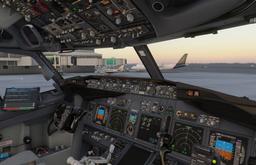
Microsoft Flight Simulator 2024 will happily generate an IFR flight plan for you in about ten seconds — and it will just as happily route you through a mountain at 8,900 feet if you let it. This guide walks through filing IFR in the EFB, both on the World Map before you load and in the cockpit afterwards, explains how the default ATC actually uses the plan you file, and shows you the common ways the system bites people.
If you have ever filed a route, taken off, and then watched ATC quietly vector you 90 degrees away from your first waypoint, this guide is for you.
What does filing IFR actually do in MSFS 2024?
There are three ways to fly with the default ATC, and they behave very differently.
No flight plan. You can take off without filing anything. ATC will only talk to you if you initiate contact, for example to request flight following. You cannot pick up an IFR clearance this way: since Sim Update 3, the Request IFR Clearance option only appears once you have filed an IFR plan in the EFB. You are responsible for everything: navigation, altitude, separation from terrain.
VFR flight following. You fly VFR and ask ATC for flight following. Altitudes are your problem. The route is whatever you fly.
IFR. You file a specific route — usually airways connecting your departure SID to your arrival STAR — and ATC issues clearances based on it. The sim assigns you a cruise altitude, runway, and (most of the time) a departure and arrival procedure. The autopilot's NAV mode will follow this plan if your aircraft supports it.
Filing IFR is what unlocks the "full" sim ATC experience: an IFR clearance with an expected altitude, climb and descent clearances, en-route handoffs, and arrival and approach instructions. It is also what gives default ATC enough information to actually plan ahead instead of reacting to whatever you do next.
Where do I file an IFR flight plan?
In MSFS 2024 the flight planner lives in the Electronic Flight Bag (EFB), which you open with the TAB key or the tablet icon in the top toolbar. You can open it at two points in a flight:
- On the World Map, before you load the flight. Best for plans you build from scratch.
- In the cockpit, after you've loaded. Use this to refine a plan, or to file IFR after departing VFR.
There are other ways to get a plan into the EFB, such as building it in the web planner at planner.flightsimulator.com and loading it with Load From Web, or importing a SimBrief plan (more on that below). Every path ends the same way: the route gets sent to your aircraft's avionics (when the aircraft supports it) and filed with the ATC system. The two moments play out a little differently, so here is how each one works.
How do I file IFR from the World Map?
Pick your aircraft, open the World Map, then press TAB to bring up the EFB and open the planner's Route page.
1. Pick your airports. Add an Origin and Destination by searching ICAO codes. As soon as both are set, the planner draws a direct line between them.
2. Switch the map preset. This is the step most beginners skip. The planner map has presets for VFR, IFR Low (anything below FL180) and IFR High (FL180 and above). The IFR presets overlay the airway structure (low-altitude airways for IFR Low, high-altitude airways for IFR High) so you can see what the auto-router is going to use.
3. Pick procedures, then click Auto-Route. Choose your departure runway and SID first, then click Auto-Route and the planner generates an airway-based route to fill the gap. Then choose the arrival runway, STAR and approach. (Older help articles call this button Find Route.)
4. Look at the route on the map. This is the step most people skip and then regret. The auto-router does not always assign a cruise altitude high enough to clear the terrain along the route. There is a well-known Steam thread where a player followed an auto-generated IFR plan straight into a mountain at 8,900 feet. In mountainous regions (the Alps, the Rockies, the Andes, the Himalayas) you should expect to manually raise your cruise altitude above the highest MEA on any segment.
5. Pick a cruise altitude. The planner suggests one. It is not always sensible. More on the legal rules in a moment.
6. Set the flight rules to IFR. Flight rules are set on the EFB's Flight Details page, not on the Route page. If this still says VFR, ATC will not give you an IFR clearance.
7. Send, then load. Open the SEND menu on the Route page and send the plan to both avionics and ATC (more on the options below). Then load the flight; the plan comes with you into the cockpit.
Get flight sim tips in your inbox
New guides, checklists, and tips. No spam. Unsubscribe any time.
How do I file IFR from the EFB in the cockpit?
Press TAB in the cockpit to open the Electronic Flight Bag. The planner's Route page is where the action is.
The EFB lets you:
- Modify the route you filed on the World Map
- Build a new route from scratch if you didn't file one
- Change the departure runway, arrival runway, and approach procedure
- Send the result to your aircraft's avionics and/or ATC
When you're happy, open the SEND menu. It offers Send To Avionics (loads the plan into the aircraft only), Send To ATC (files it with ATC only) and Send To Avionics And ATC (both). Only a plan filed with ATC gets you clearances based on it, so for an IFR flight you almost always want both. Exact labels may vary by Sim Update.
Two real-world caveats:
First, the avionics push doesn't work with every aircraft. The native MSFS 2024 flight plan import is supported by stock 2024 aircraft (default aircraft built for MSFS 2024) but does not work with MSFS 2020-native aircraft running in compat mode, and a number of third-party 2024 add-ons (PMDG, Fenix at the time of writing) maintain their own flight plan systems that don't accept the EFB push. For those, you build the route in the aircraft's own FMC/CDU.
Second, you can file IFR from the EFB after you're already airborne. Send the plan to ATC, then use Request IFR Clearance in the ATC menu; Sim Update 3 made that request work against the plan you filed in the EFB, and it no longer requires you to be on flight following first.
Use the EFB path when you're already in the cockpit, when you want to swap a procedure after looking at the weather, or when your home airport has a runway change you didn't see coming.
What altitude should I fly IFR?
File a cruise level that follows the real-world IFR convention (14 CFR 91.179). In controlled airspace ATC assigns your altitude, but the hemispheric rule is the convention to plan around:
- Below FL180: magnetic course 0 to 179° (eastbound): odd thousands (3,000, 5,000, 7,000 … 17,000). Magnetic course 180 to 359° (westbound): even thousands (4,000, 6,000, 8,000 … 16,000).
- FL180 through FL280: eastbound: FL190, FL210, FL230, FL250, FL270. Westbound: FL180, FL200, FL220, FL240, FL260, FL280.
- FL290 through FL410 (RVSM airspace): same-direction cruise levels are spaced 2,000 ft apart. Eastbound: FL290, FL310, FL330, FL350, FL370, FL390, FL410. Westbound: FL300, FL320, FL340, FL360, FL380, FL400.
Whether the default ATC honours the level you filed is another matter. The most reported quirk is ATC stepping you up in 2,000 ft increments well above your filed cruise, sometimes beyond what the aircraft can reach: players have reported a C172 being asked to climb to 15,000 ft, above its service ceiling. A Sim Update fix targeted this, and players were still reporting it in mid-2026. The knock-on effect: if you follow ATC up to a level your filed plan never expected, you can end up facing a steep, late descent at the other end.
If the assigned altitude looks wrong, check the cruise altitude you filed in the EFB, refile, and request a new clearance, or simply request a different altitude from ATC once airborne.
Why does ATC give me a different route than SimBrief?
You will eventually hit this: you build a beautiful SimBrief OFP, load it into your FMC, push back, request IFR clearance, and ATC reads back a completely different route.
This happens because ATC clears you on the plan that was filed with it through the EFB, not on whatever is in your FMC. Loading SimBrief straight into an airliner's own FMC (the PMDG and Fenix workflows, for example) leaves the sim's ATC holding a different plan, often one the EFB's auto-router built. SimBrief and the EFB auto-router are different routing engines and rarely pick the same airways.
The fix is to get the same route into the EFB and file that with ATC:
- Import SimBrief into the EFB. Navigraph's free SimBrief Dispatch app runs inside the MSFS 2024 EFB and imports your SimBrief plan into the sim. Then use the SEND menu to file it with ATC. If the import misbehaves, our SimBrief EFB import troubleshooting guide covers the usual causes.
- Paste the route string. Copy the route text from your SimBrief OFP and paste it into the planner's route text field (the web planner at planner.flightsimulator.com has one), then load and send it to ATC.
- Skip SimBrief for short hops. On a short flight with the stock ATC, the EFB planner alone is fine and avoids the mismatch entirely.
Our dedicated SimBrief to FMC workflow guide covers the matching process in detail.
Why is ATC not following my flight plan?
SID/STAR mismatch with assigned runway. You loaded a departure built for runway 27R. ATC then assigns runway 9L for departure because the wind shifted. The SID in your FMC is now invalid. Fix: when ATC issues a runway change, reopen the EFB or your FMC's Departure page and pick a SID compatible with the new runway before you taxi. The runway you plan is an expectation, not a reservation.
Vectors that ignore your filed route. Default ATC will sometimes vector you toward a fix you don't expect. The usual cause is that ATC and your avionics hold different procedures: you changed the STAR, transition or approach in the cockpit but never refiled, so the aircraft flies the new route while ATC keeps steering you toward the old one. Fix: make the change in the EFB and send it to both avionics and ATC. If a vector still leaves you off course, request "direct [next waypoint]" once you're clear of conflicts.
Late descent clearance. One of the most reported complaints about default ATC. You're at FL360, 60 nm from the destination, and ATC still hasn't started you down. You are now well above a sensible top-of-descent. Fix: don't wait. Request descent yourself at around 100 nm out. If you're given a "descend at pilot's discretion" or "descend FL240", begin the descent at your calculated TOD, not when ATC tells you.
EFB push silently fails. You hit Send To Avionics and the FMC still shows no flight plan. The aircraft you're flying doesn't support the import. Build the route in the aircraft's native FMC/CDU instead, a skill worth having before you need it, since it is the fallback for every aircraft that will not import. Our free browser trainers run the same key sequences with no sim and no install: ROUTE Page Basics on the 737 CDU, INIT Page Basics on the A320 MCDU.
Auto-routed plan through terrain. Covered above. Always look at the map before accepting an auto-route in mountainous areas. The MSFS 2024 World Map can show terrain shading, and you can click a point on the map for its elevation, so use it.
Quick-Fix Table
| Symptom | Likely cause | Fix |
|---|---|---|
| ATC reads back a different route | ATC holds the EFB plan, your FMC holds the SimBrief plan | Import or paste the SimBrief route into the EFB and send it to ATC |
| FMC empty after EFB push | Aircraft doesn't support the native import | Use the aircraft's own FMC/CDU; check our SimBrief to FMC guide |
| Planned cruise clips terrain | Cruise altitude below the terrain or MEA on the route | Refile at a higher cruise; check the terrain and IFR Low map before accepting auto-route |
| Vectored toward an unexpected fix | ATC and avionics hold different procedures | Send the updated plan to ATC too; request "direct" to next waypoint once clear |
| Descent clearance very late | Default ATC quirk | Request descent yourself ~100 nm out; start descent at calculated TOD |
| SID invalid after runway change | Wind shift, ATC reassigned runway | Reload SID/STAR for the new runway in the EFB or FMC before taxi |
| No IFR clearance option | Plan not filed with ATC, or flight rules still VFR | Set IFR on Flight Details and send the plan to ATC, not just avionics |
What to Read Next
If you want the full story on procedures, our SIDs and STARs explained guide breaks down what each procedure type does and how ATC strings them together. For the readback side — what to actually say when ATC clears you to FL310 — our ATC phraseology guide walks through every standard call from clearance delivery to handoff.
The single biggest improvement most people make to their IFR flying isn't a better add-on or a fancier FMC — it's spending five minutes looking at the route on the map before clicking Fly. The sim will hand you a plan that looks reasonable in the text list and routes you through the side of a mountain. Five minutes of map-staring fixes that problem permanently.