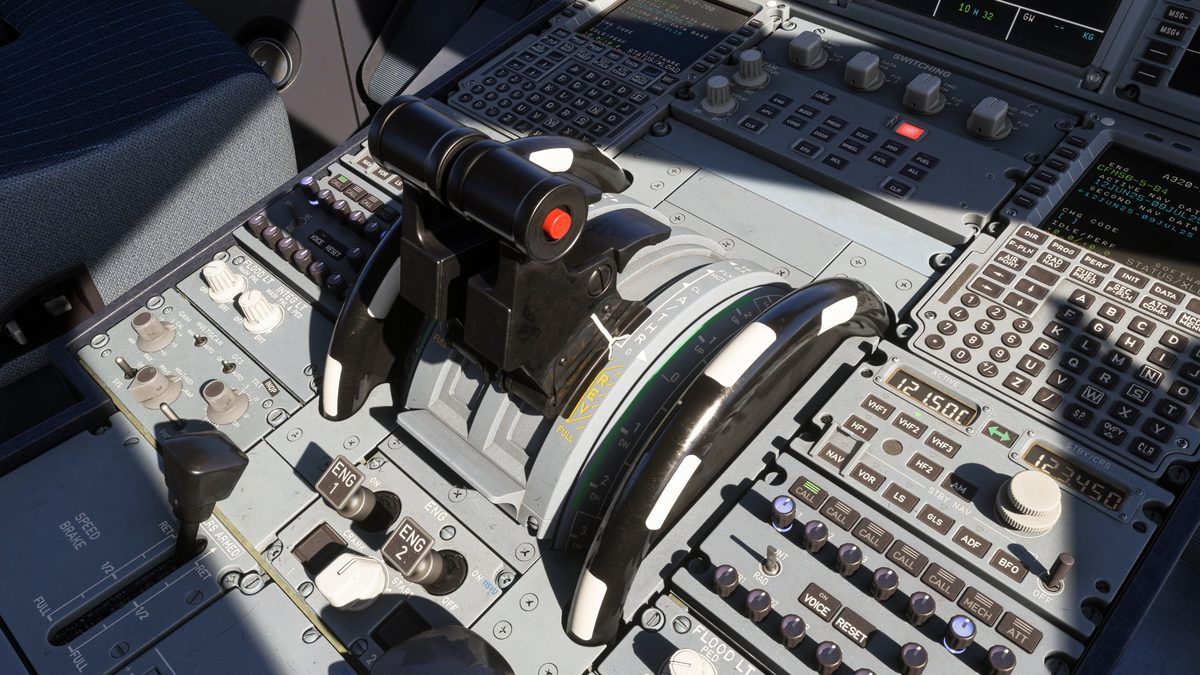
If you have ever sat in the A320 cockpit and stared at the little keyboard-and-screen unit on the center pedestal wondering what on earth to type, this guide is for you. That unit is the MCDU, and once you understand how it is laid out, the intimidation disappears fast.
This is a plain-English explainer of what the Airbus A320 MCDU is, what every major page does, and how a real flight flows through it. No prior systems knowledge assumed.
Want to stop reading and start pressing keys? You can practice everything in this guide hands-on, free, in our browser A320 MCDU trainer — no install, no add-on purchase, no sign-up wall.
Prefer physical keys? The MOZA MA3F Flight Computer Display is a hardware A320-style MCDU with a 5.1-inch screen and backlit keypad that mirrors your sim's FMS pages in real time — every page below works the same way on it.
Affiliate disclosure: This guide contains affiliate links. If you purchase through these links, SimTuts earns a small commission at no extra cost to you. We only recommend products we genuinely believe improve the flight sim experience.
What the MCDU actually is (and is not)
MCDU stands for Multipurpose Control and Display Unit. It is the crew's interface — the panel you type on. It is not the brain doing the calculations.
That is the single most common confusion for newcomers, so let's untangle the three acronyms you will keep hearing:
- MCDU — the physical screen-and-keypad unit. Just the interface. There are two of them in the A320, one in front of each pilot.
- FMGC — the Flight Management and Guidance Computer. This is the actual computer. It does navigation, flight planning, predictions, and sends commands to the autopilot, flight director and autothrust. Each FMGC has two halves: FM (flight management — the planning and prediction side you interact with) and FG (flight guidance — the autopilot/autothrust side).
- FMGS — the Flight Management and Guidance System. The umbrella term for the whole setup: two FMGCs, two MCDUs, the FCU on the glareshield, and two flight augmentation computers (FACs).
So when you type into the MCDU, you are sending data to the FMGC, which is one part of the wider FMGS. People also loosely say "FMS" (Flight Management System) to mean roughly the same planning function. On a Boeing the equivalent crew interface is called the CDU/FMC — same idea, different layout.
The key takeaway: the MCDU is how you talk to the computer. It does not fly the plane by itself. You program intent into it; the FMGC turns that into guidance.
The physical unit
Every MCDU has the same anatomy:
- The display — a small screen, usually around 14 lines. The top line is the page title.
- Line Select Keys (LSKs) — six buttons down each side, labelled 1L to 6L on the left and 1R to 6R on the right. They "select" whatever is shown next to them on that line. As a rule of thumb on the flight plan, left-side keys handle lateral revisions and right-side keys handle vertical revisions.
- Page keys — the block of labelled buttons: INIT, DATA, F-PLN, RAD NAV, FUEL PRED, SEC F-PLN, ATC COMM, MCDU MENU, PERF, PROG, DIR. Each jumps you straight to that page.
- Alphanumeric keypad — letters and numbers for typing entries.
- The scratchpad — the bottom line of the display. Think of it as a notepad. You type into the scratchpad, then press the LSK next to the field where you want the data to land. Nothing is committed until you press that LSK.
- CLR (clear) key — clears the scratchpad, deletes a field, or dismisses MCDU messages.
- Brightness control — a small knob/keys to dim the unit for night flying.
That scratchpad-then-LSK flow is the entire muscle memory of Airbus data entry. Type the value, then "throw" it at a field with the line key. Get that and you can drive any page.
The page keys, one by one
Here is what each labelled key is for. Don't memorise — just get the shape of it.
INIT — initialisation
This is where a flight begins. INIT A (the first page) takes the basics:
- FROM/TO — the departure and destination ICAO pair, e.g.
EGKK/LEPA. - CO RTE — a stored company route, if one exists.
- ALTN — your alternate airport.
- FLT NBR — the flight number.
- COST INDEX — the trade-off between speed and fuel economy.
- CRZ FL / TEMP — your planned cruise flight level and temperature.
Entering FROM/TO also gives the FMGC a present position to start the IRS alignment, which the inertial reference units need before they can navigate. You can also align from a company route or by typing latitude/longitude directly.
Press the right arrow from INIT A and you reach INIT B, the fuel and weight page: ZFW/ZFWCG (zero fuel weight and its centre of gravity) and block fuel. The FMGC needs your ZFW to calculate a speed profile and fuel predictions. If you skip it, you get amber boxes nagging you.
Practise the full INIT A and INIT B sequence hands-on in our free A320 MCDU trainer — it walks you through each field with live feedback.
F-PLN — flight plan
The heart of the MCDU. The F-PLN page is the running list of waypoints from your departure runway to your destination, with predicted times, speeds and altitudes alongside each. From here you insert your SID, your route (airways and waypoints, or a SimBrief import), and your STAR and approach.
Remember the lateral/vertical split: select a waypoint with a left LSK to make a lateral revision (insert a point, hold, airway), and the right LSK for a vertical revision (altitude or speed constraint).
Holding patterns live behind that left LSK, and it is the single most-hunted-for page on the box. There is no HOLD page key on an A320 MCDU. To program a hold: left-LSK the waypoint to open LAT REV, press <HOLD, type the published inbound course and press 1L (INB CRS), then press 6R INSERT*. To leave the hold once established, use IMM EXIT. You can walk that exact sequence, free, in the trainer's HOLD scenario.
This is the page beginners spend the most time on — build a full route step by step in the trainer.
RAD NAV — radio navigation
Shows the navaids the FMGC has tuned — VOR, ILS, ADF — either automatically based on your position, or manually if you override them. This is where you'd set up the ILS frequency and course for an approach if it isn't tuned for you.
Get flight sim tips in your inbox
New guides, checklists, and tips — no spam. Unsubscribe any time.
PERF — performance
The PERF page is split by flight phase: TAKEOFF, CLB (climb), CRZ (cruise), DES (descent), APPR (approach), and GA (go-around). Each sub-page holds the speeds and settings for that phase — for example V-speeds and flap/thrust settings on the takeoff page, and the approach speed and configuration on APPR. As the flight progresses, you advance through the phases.
PROG — progress
A status page: where you are in the flight, your cruise altitude, recommended max altitude, and useful position/bearing info. You glance at it in the cruise rather than typing into it much.
FUEL PRED — fuel prediction
Predicted fuel remaining at destination and at the alternate, plus fuel management figures. There is a neat quirk here: before engine start the fuel/weight data lives on INIT B; after engine start that role moves to the FUEL PRED page, where you can review or re-enter ZFW/ZFWCG. Same data, different home depending on the phase — which trips up a lot of new simmers.
DIR — direct to
Press DIR and the MCDU offers to send you straight to a waypoint, cutting out everything in between. The classic "Direct to" you'll hear ATC ask for. Pick the waypoint, confirm, and your lateral plan updates.
SEC F-PLN — secondary flight plan
A complete second flight plan you can build in the background — a different runway, an alternate routing, a diversion — without disturbing your active plan. You can swap it in if needed.
DATA, MCDU MENU, ATC COMM
- DATA — reference data: stored waypoints, navaids, runways, and the nav database status.
- MCDU MENU — the top-level menu that lets the MCDU talk to other systems (FMGC, ATSU, AIDS, etc.). On a cold start you sometimes route through here.
- ATC COMM — the datalink (CPDLC) interface for text communication with ATC. Fidelity here varies a lot between sim add-ons.
How a typical flight flows through the MCDU
On a real (or well-simulated) flight, the MCDU work happens in a clear order:
- Cold and dark → power up. With the aircraft powered, you start on the INIT page.
- INIT A. Enter FROM/TO, flight number, cost index, cruise level. This also kicks off IRS alignment.
- F-PLN. Insert your departure (SID), the en-route airways and waypoints, then the arrival (STAR) and approach.
- RAD NAV. Check or set your navaids.
- INIT B. Enter ZFW/ZFWCG and block fuel so the FMGC can predict.
- PERF (takeoff). Enter your takeoff speeds and settings.
- In flight. Advance through the PERF phases, watch PROG and FUEL PRED, and use DIR when ATC sends you direct.
That is the whole loop. Programme intent on the ground, then monitor and adjust in the air.
For the full cockpit-startup context around this, our Fenix A320 cold and dark startup guide walks the powering-up steps, and the FMC programming guide covers the same route-building logic from the Boeing side if you want to compare.
The MCDU across the popular MSFS add-ons
One reason the MCDU feels different depending on whose video you're watching: the major Microsoft Flight Simulator A320 add-ons model it to different depths.
- iniBuilds A320neo V2 — this is the default A320 that ships free with MSFS 2024 (added in Sim Update 15). Its MCDU covers the core workflow well and is the one most new simmers will meet first, because they already own it. Our iniBuilds A320 V2 tutorial walks through it specifically.
- FlyByWire A32NX — the long-running freeware A320neo, well regarded for its MCDU accuracy and excellent open documentation. A great free way to learn the pages in depth.
- Fenix A320 — payware (around £49.99) and pitched as study-level, with deeper systems simulation, failures, and a very faithful MCDU. It has experimental MSFS 2024 compatibility. If you want the closest-to-real experience, this is the usual recommendation.
At a high level all three follow the same INIT → F-PLN → PERF logic this guide describes, so what you learn transfers between them. The differences are in depth — how many edge-case sub-pages, messages and quirks are modelled — not in the basic shape. Don't fall into the trap of thinking you need the most expensive aircraft to learn the MCDU; the free options teach the same fundamentals.
Common beginner mistakes and confusions
A few traps that catch nearly everyone:
- Confusing the MCDU with the FCU. The FCU is the long panel on the glareshield with the heading, speed and altitude knobs — that's for short-term tactical changes. The MCDU on the pedestal is for programming the plan. Different jobs, different locations.
- Looking for INIT B and not finding it. Remember it's reached with the right arrow from INIT A — and after engine start its fuel/weight role shifts to the FUEL PRED page.
- Forgetting ZFW. No zero-fuel weight means no speed profile and no predictions — you'll see amber boxes until you enter it.
- Latitude/longitude format. When you do enter coordinates manually (for IRS alignment, say), the format is specific. Type carefully and verify the position before confirming.
- Skipping IRS alignment. The inertial units need to align before the aircraft can navigate. Give them a valid present position early.
- Expecting it to fly the plane. The MCDU programmes the plan, but you still arm the modes on the FCU and engage the autopilot. Typing a route doesn't mean the aircraft is following it yet.
- Hunting for a HOLD key. There isn't one. Holds are a lateral revision on the waypoint — left LSK, then
<HOLD. See the F-PLN section above, or do it in the trainer.
Where to go next
The fastest way to make all of this stick is to actually press the keys. You don't need to load a sim or buy an aircraft — our free browser A320 MCDU trainer runs the real page flow with guided scenarios and instant feedback, so you can drill INIT, F-PLN and PERF until they're second nature.
When you're ready to go further, SimTuts Premium unlocks advanced scenarios and AI-graded feedback on your entries — useful once the basics click and you want to be tested on edge cases.
To connect the MCDU to a real-world planning workflow, see how to take a flight plan from SimBrief straight into the box in our SimBrief to FMC workflow guide. And to make sense of the approaches you'll be programming into the F-PLN and flying, try the approach plates quiz.
Master the MCDU and the A320 stops feeling like a spreadsheet with wings — and starts feeling like the aircraft it is.