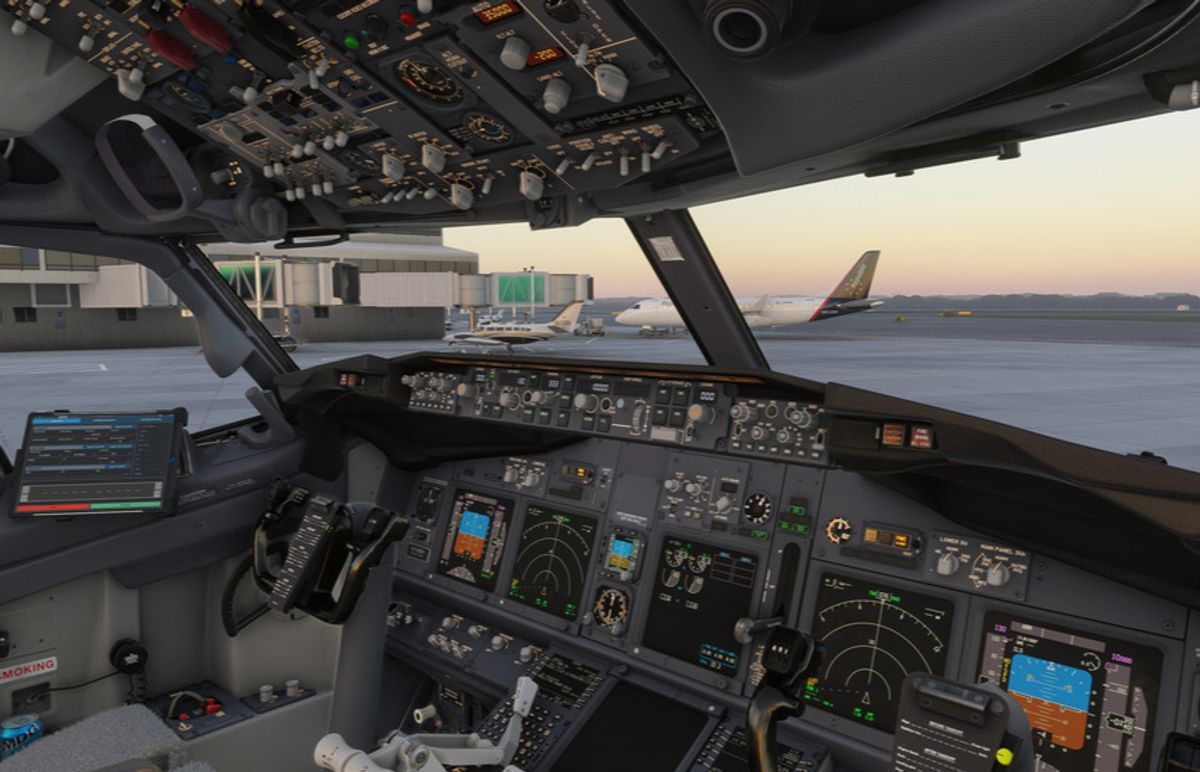
If you have ever climbed into the Boeing 737 flight deck and stared at the little keyboard-and-screen unit on the center pedestal wondering where to even start, this guide is for you. That unit is the CDU, and once you understand how it is laid out — and the one Boeing quirk that catches everyone — the intimidation disappears fast.
This is a plain-English explainer of what the Boeing 737 CDU and FMC actually are, what every major page does, and how a real flight flows through them. No prior systems knowledge assumed.
Want to stop reading and start pressing keys? You can practice everything in this guide hands-on, free, in our browser 737 CDU trainer — no install, no add-on purchase, no sign-up wall.
Prefer physical keys? The MOZA MB7F Flight Computer Display is a hardware 737-style CDU with a 5.1-inch screen and backlit keypad that mirrors your sim's FMC pages in real time — every page below works the same way on it.
Affiliate disclosure: This guide contains affiliate links. If you purchase through these links, SimTuts earns a small commission at no extra cost to you. We only recommend products we genuinely believe improve the flight sim experience.
CDU, FMC, FMS: what each one actually is
These three acronyms get used loosely and interchangeably, which is the first thing to untangle:
- CDU — the Control Display Unit. This is the physical screen-and-keypad on the pedestal. It is the crew's interface — the thing you type on and read from. There are two of them in the 737, one for each pilot. The CDU is just the window; it is not the brain.
- FMC — the Flight Management Computer. This is the actual computer doing the work: navigation, flight planning, performance predictions, and feeding lateral (LNAV) and vertical (VNAV) guidance to the autopilot. When you type into the CDU, you are sending data to the FMC.
- FMS — the Flight Management System. The umbrella term for the whole setup: the FMC, the CDUs, the navigation database, and the way it all ties into the autopilot and displays.
So the relationship is simple: the CDU is how you talk to the FMC, and the FMC is one part of the wider FMS. The CDU does not fly the aircraft. You program intent into it; the FMC turns that into guidance the autopilot can fly.
If you are coming from the Airbus side, the equivalent crew interface there is called the MCDU, talking to the FMGC. Same idea, different layout — and one big behavioural difference we will get to shortly, because it is the single most important thing to understand about the Boeing box.
The physical unit
Every 737 CDU has the same anatomy:
- The display — a small screen. The top line is the page title.
- Line Select Keys (LSKs) — six buttons down each side. The left column is 1L through 6L (top to bottom), the right column 1R through 6R. They "select" whatever is shown next to them on that line — either pulling data into the scratchpad, or pushing scratchpad data into a field.
- Function/page keys — a block of dedicated keys that jump you straight to a page: INIT REF, RTE, DEP ARR, LEGS, HOLD, PROG, N1 LIMIT, FIX, CLB, CRZ, DES, DIR INTC, plus PREV PAGE / NEXT PAGE to step through multi-page sets.
- Alphanumeric keypad — letters and numbers for typing entries, plus the DEL and CLR keys.
- The scratchpad — the bottom line of the display. Think of it as a notepad: you type a value into the scratchpad, then press the LSK next to the field where you want it to land.
- The EXEC key and the annunciator lights — the part that makes Boeing Boeing. We will cover these next because they deserve their own section.
That scratchpad-then-LSK flow is the muscle memory of all CDU data entry. Type the value, then "throw" it at a field with the line key.
Want to feel where every one of those keys is? Our free 737 CDU trainer puts the full unit in your browser so you can drill the layout.
The one Boeing concept to nail: EXEC and staged modifications
This is the part that confuses simmers more than anything else, and it is the biggest difference from the Airbus MCDU. On the 737, your changes do not take effect the moment you type them. They go into a pending modification, and nothing happens until you press EXEC.
Here is exactly how the FCOM describes it. When you make a change to the active route or to a performance mode, three things happen at once:
- MOD appears in the page title (so
RTE 1becomesMOD RTE 1). - An ERASE prompt appears next to line select key 6L, letting you throw the whole change away.
- The white EXEC light illuminates on the EXEC key.
At that point your change exists, but the FMC is not flying it yet. The active plan is still the old one. Only when you press EXEC does the modification become active — the page title drops the MOD and shows ACT, and the EXEC light goes out. The FCOM is precise about this: pushing EXEC "makes data modification(s) active" and "extinguishes execute light."
So the mental model is MOD → EXEC → ACT. You build up a change (MOD), commit it (EXEC), and it becomes the active plan (ACT). If you change your mind before committing, hit ERASE at 6L instead.
This is genuinely different from the Airbus MCDU, where many entries commit the instant you press the LSK. On the Boeing you get a deliberate two-step: stage, then activate. It is safer once you internalise it — but until you do, you will wonder why "nothing happened" when you typed a new cruise altitude or rerouted to a fix. Nine times out of ten, the answer is you forgot to press EXEC.
The annunciator lights
Around the CDU you will see small annunciator lights. The ones that matter most:
- EXEC light (white) — a modification is pending and waiting for you to execute it.
- MSG (white) — the Message light: the FMC has written an advisory into the scratchpad (for example a constraint problem, or "NOT IN DATA BASE").
- OFST (white) — the Offset light: LNAV is flying a parallel lateral offset from your route.
- FAIL (amber) — the selected FMC has failed.
The EXEC/MOD/ACT loop is the single hardest habit to build by reading — our free trainer makes you press EXEC at the right moments until it is automatic.
The key CDU pages, one by one
Here is what each page is for, in plain English. Don't memorise — just get the shape of it. Note that several "pages" are not their own dedicated key: they live behind the INIT REF key and its index.
IDENT — identification
The reference page that shows which aircraft model and engine the FMC is configured for, and crucially the navigation database in use, with its active and inactive validity dates. You glance at it at the start of a flight to confirm the nav data is current. You don't really type here.
POS INIT — position initialisation
Where the FMC learns where it is. You set the present position (typically by pulling in the GPS position and entering it on the SET IRS POS line) so the Inertial Reference System can align. The aircraft cannot navigate until the IRS has a valid starting position.
RTE — route
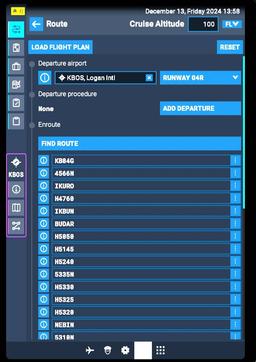
The page where you enter origin, destination, and the route itself — airways and waypoints between them, or a company route. The 737 has two route slots, RTE 1 and RTE 2, so you can build an alternative routing in RTE 2 without disturbing the active one, then activate and execute it if you need it. Building or editing the active route is exactly where the MOD → EXEC workflow kicks in.
Get flight sim tips in your inbox
New guides, checklists, and tips — no spam. Unsubscribe any time.
DEP ARR — departures and arrivals
Reached with the DEP ARR key. This is where you select your departure procedure (the SID and runway) and your arrival (the STAR and approach). The selections drop into your route and LEGS automatically.
LEGS — the running flight plan
The heart of the CDU. RTE LEGS is the sequential list of every waypoint from departure to destination, with the track, distance, speed and altitude alongside each. This is where you fine-tune the lateral and vertical plan: insert a waypoint, fix a ROUTE DISCONTINUITY (a gap the FMC needs you to close), or add a speed/altitude constraint. Edits here create a MOD that you then EXEC.
PERF INIT — performance initialisation
Where the FMC gets the numbers it needs to predict the flight: gross weight (or zero fuel weight), reserves, cost index, and cruise altitude. Without PERF INIT data the FMC cannot build a proper VNAV profile — and if it is missing or invalid you will see box prompts and VNAV will not engage.
N1 LIMIT — thrust limit
Where you view or set the N1 thrust limit for takeoff and climb — full rated thrust or a reduced/derated setting, plus the assumed temperature for a reduced-thrust takeoff. This feeds the takeoff performance.
TAKEOFF REF — takeoff reference
The pre-departure performance page: flap setting, CG, and your takeoff V-speeds (V1, VR, V2). You verify or enter these here before you roll. (On the Airbus this lives on the PERF TAKEOFF page — same job, different home.)
The VNAV pages: CLB, CRZ, DES
Three dedicated keys for the vertical profile:
- CLB (climb) — climb speeds and any speed/altitude restrictions on the way up.
- CRZ (cruise) — cruise altitude, speed, and step-climb planning.
- DES (descent) — the descent path, speeds, and where the FMC plans to start down.
These are what VNAV follows once it is engaged from the autopilot panel.
PROG — progress
A status page: distance and ETA to the next waypoint and the destination, fuel remaining at destination, and other live flight data. You glance at it in the cruise rather than typing into it.
FIX — fix info
Lets you create a reference point on the navigation display — draw a range ring or radial from a chosen fix. Handy for situational awareness ("show me 30 miles from this VOR") without changing your route.
HOLD — holding patterns
Where you build a holding pattern at a waypoint — inbound course, turn direction, leg length or time — and view holding data such as the FMC's exit prediction.
DIR INTC — direct / intercept
The Boeing equivalent of "direct to." DIR INTC lets you go directly to any waypoint, or intercept a chosen course to a waypoint, cutting out everything in between — the classic clearance ATC gives you. Like any route change, it stages a MOD that you EXEC.
INIT REF and the MENU
- INIT REF is the key that opens the INIT/REF INDEX, the gateway to IDENT, POS INIT, PERF INIT, TAKEOFF REF, APPROACH REF and the nav-data pages. Early in a flight you live in this index.
- The MENU is the top-level page that lets the CDU talk to other systems (the FMC, ACARS/datalink, and so on). On some add-ons you route through it on a cold start.
How a typical flight flows through the CDU
On a real (or well-simulated) flight, the CDU preflight happens in a clear order. Watch where EXEC appears:
- Cold and dark → power up. With the aircraft powered, start at INIT REF → IDENT to confirm the nav database.
- POS INIT. Set present position so the IRS can align — do this early, alignment takes time.
- RTE. Enter origin, destination and the route. (MOD → EXEC to activate it.)
- DEP ARR. Select the departure (SID/runway); add the arrival (STAR/approach) when you have it.
- LEGS. Check the sequence, close any ROUTE DISCONTINUITY, add constraints. (MOD → EXEC.)
- PERF INIT. Enter weights, reserves, cost index and cruise altitude so VNAV can build its profile.
- N1 LIMIT and TAKEOFF REF. Set the thrust limit and your V-speeds.
- In flight. Monitor PROG, work the CLB/CRZ/DES pages, and use DIR INTC when ATC sends you direct — each route change staged as a MOD and committed with EXEC.
That is the whole loop: program intent on the ground, then monitor and adjust in the air — always remembering that on Boeing, a change is not live until you EXEC it.
For the cockpit context around this, our PMDG 737 cold and dark startup guide walks the powering-up steps, the PMDG 737 FMC tutorial goes deeper on programming the box, and the FMC programming guide covers the same route-building logic generically.
The 737 CDU across the popular MSFS add-ons
One reason the CDU feels different depending on whose video you are watching: the major Microsoft Flight Simulator 737s model it to different depths.
- PMDG 737 — the payware, study-level gold standard. Its CDU is a faithful reproduction of the real NG box, with the full page set, messages and quirks modelled in depth, and tight integration with planning tools like Navigraph and SimBrief. If you want the closest-to-real CDU experience in MSFS, this is the usual recommendation. (It is well regarded, though some users have reported FMC stability issues in MSFS 2024 when heavily editing the LEGS page — worth knowing, not a dealbreaker.)
- The default MSFS 2024 737 MAX 8 — MSFS 2024 ships with a Boeing 737 MAX 8, an Asobo/iniBuilds collaboration included with the sim. It is praised as one of the most in-depth default airliners ever, with genuinely deep systems for a stock aircraft — though it is generally described as not quite study-level. For many new simmers this is the first 737 CDU they will meet, because they already own it. Note it is the MAX generation, so a few details differ from the classic NG box, but the CDU fundamentals — INIT REF, RTE, LEGS, PERF INIT, the EXEC workflow — are the same.
At a high level both follow the same INIT REF → RTE → LEGS → PERF logic this guide describes, so what you learn transfers between them. The differences are in depth — how many edge-case pages, messages and quirks are modelled — not in the basic shape. Don't fall into the trap of thinking you need the most expensive aircraft to learn the CDU; the default 737 teaches the same fundamentals.
Common beginner mistakes and confusions
A few traps that catch nearly everyone on the 737:
- Forgetting to press EXEC. You type a new cruise altitude, a reroute, a direct-to — and "nothing happens." The EXEC light is on and your change is sitting in a MOD. Press EXEC and watch the page title change from MOD to ACT.
- Confusing the CDU with the MCP. The MCP (Mode Control Panel) is the long autopilot panel on the glareshield with the heading, speed and altitude knobs and the LNAV/VNAV/autopilot buttons — that is for tactical, short-term control. The CDU on the pedestal is for programming the plan. Typing a route into the CDU does not mean the autopilot is following it; you still arm LNAV/VNAV on the MCP.
- Mixing up RTE 1 and RTE 2. RTE 2 is your alternative route slot. Build there freely, but remember you must activate and EXEC it before it becomes the route you are flying.
- "NOT IN DATA BASE" entries. If you type a waypoint, airway or procedure the nav database doesn't recognise, the FMC rejects it with a scratchpad message and the MSG light. Check the spelling and that it actually exists for your database cycle, or define it as a custom fix.
- Ignoring a ROUTE DISCONTINUITY. A discontinuity is a gap the FMC won't fly across. On the LEGS page you must close it (enter or delete waypoints to make a continuous path), then EXEC — otherwise LNAV will not guide you past the gap.
- Skipping PERF INIT. No performance data means no VNAV profile and no useful predictions. Fill it in before you expect VNAV to work.
Where to go next
The fastest way to make all of this stick is to actually press the keys. You don't need to load a sim or buy an aircraft — our free browser 737 CDU trainer runs the real page flow with guided scenarios and instant feedback, so you can drill INIT REF, RTE, LEGS, PERF INIT — and the all-important EXEC habit — until they are second nature.
When you're ready to go further, SimTuts Premium unlocks advanced scenarios and AI-graded feedback on your entries — useful once the basics click and you want to be tested on edge cases like discontinuities and database errors.
If LNAV or VNAV aren't behaving once you've programmed the box, our LNAV not working guide and VNAV not working guide walk the usual causes. To connect the CDU to a real planning workflow, see the SimBrief to FMC workflow guide. And to make sense of the approaches you'll be programming into LEGS, try the approach plates quiz.
Master the CDU — and the habit of pressing EXEC — and the 737 stops feeling like a locked box and starts feeling like the aircraft it is.