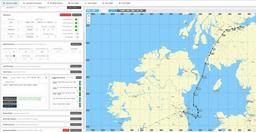
You loaded a flight plan, took off, pressed LNAV (or what you thought was LNAV), and the aircraft just... kept going straight. The magenta line is right there on the navigation display. The route is clearly loaded. But the autopilot is ignoring it completely.
This is one of the most common problems in MSFS 2024, and it has about six different causes depending on which aircraft you're flying. Let's go through them.
Affiliate disclosure: This guide contains affiliate links. If you purchase through these links, SimTuts earns a small commission at no extra cost to you. We only recommend products we genuinely believe improve the flight sim experience.
The most common cause is a route problem. Practise route entry and clearing discontinuities in our free 737 CDU Trainer or A320 MCDU Trainer — in your browser, no sim needed.
Boeing: PMDG 737 and 777
On a Boeing, LNAV is a button on the Mode Control Panel (MCP) — the strip of knobs and buttons above the main displays. You press it, and the aircraft is supposed to follow the route in the FMC. When it doesn't, it's almost always one of these.
Your flight plan isn't actually in the FMC
This is the number one cause by a wide margin. If you built your route using the MSFS world map flight planner, that plan lives in the sim's GPS system — it does not automatically transfer to the PMDG FMC. The FMC is a completely separate system. You have to enter the route into the FMC yourself, either manually via the CDU or by importing from SimBrief through PMDG's ACARS uplink.
Check the LEGS page on the CDU. If it's blank, there's your problem. LNAV has nothing to follow.
Route discontinuities
Open the LEGS page and scroll through your route. If you see the word DISCONTINUITY anywhere, that's a gap in your flight plan. The FMC doesn't know how to get from the waypoint above the gap to the waypoint below it, so LNAV can't track through it.
To fix it: click the waypoint below the discontinuity to put it in the scratchpad, then paste it over the DISCO line. This connects the two segments. Not every discontinuity should be deleted though — some are intentional, like a gap before vectors-to-final on an approach. But if you're in the climb or cruise phase and LNAV won't engage, a stray discontinuity is often the culprit.
LNAV is armed but not captured
Look at the Flight Mode Annunciator (FMA) at the top of the PFD. If LNAV shows in white, it's armed — meaning the FMC is waiting for the aircraft to get close enough to the route to capture it. If the aircraft is way off to the side of the magenta line, LNAV won't capture because the intercept angle is too steep.
The fix: use HDG SEL to turn toward the route first. Dial in a heading that will intercept the next leg at a reasonable angle (30 degrees or less works well), then press LNAV. Within about 3 NM of the route LNAV will capture at any heading, but further out than that you need an intercept course of 90 degrees or less that crosses the leg before the active waypoint — anything steeper won't capture.
The autopilot isn't actually on
Sounds obvious, but it's easy to miss. Pressing LNAV tells the FMC what lateral mode you want. But the autopilot (CMD A or CMD B) needs to be engaged for the aircraft to actually follow those commands. If the flight directors are on but the autopilot isn't engaged, the FD bars will show you what the aircraft should be doing, but it won't actually do it.
Press CMD on the MCP. The FMA should show CMD in green.
MSFS assistance settings are interfering
This one is a massive gotcha that catches people who've been flying default aircraft and switched to PMDG. Go to Options → Assistance → Piloting and turn everything to Hard/Off. The AI copilot, autopilot assists, and other hand-holding features actively fight with PMDG's custom autopilot system. PMDG explicitly recommends all assists off. If you've got "AI Control Aircraft" or similar options enabled, the sim's autopilot logic overrides the addon's.
IRS not aligned
If you started from cold and dark, the Inertial Reference System needs time to align — about 10 minutes on the 737. Until alignment is complete, the FMC doesn't have reliable position data, which means LNAV can't track properly. The ALIGN lights on the overhead IRS panel tell you when it's done. If you rushed through the startup and took off with the IRS still aligning, that's likely your problem.
Airbus: Fenix A320 and FlyByWire A32NX
Here's where Boeing pilots get confused: there is no LNAV button on an Airbus.
The Airbus uses a fundamentally different autopilot philosophy. Instead of discrete mode buttons, the Flight Control Unit (FCU) uses push/pull knobs that switch between managed and selected modes.
Push the HDG knob — don't look for an LNAV button
To follow the flight plan laterally, you push the heading knob on the FCU. This puts the aircraft in NAV mode (managed lateral navigation). The HDG window on the FCU goes blank with dashes, meaning the FMGC is managing the heading.
If you pull the heading knob, you're in selected heading mode — the aircraft flies whatever heading is dialled in the HDG window. This is the equivalent of Boeing's HDG SEL. Many simmers coming from Boeing spend ages looking for the LNAV button when the answer is just pushing a knob they've been pulling.
No flight plan in the MCDU
Same principle as Boeing. If the MCDU flight plan page is empty or shows a dashed route on the ND, there's nothing for NAV mode to follow. You need a complete flight plan entered in the MCDU — origin, destination, SID, STAR, and a continuous route between them.
On the Airbus ND, a solid green line is the active flight plan. Temporary route changes appear as dashed yellow. If you see no green line, the flight plan isn't active.
FlyByWire minimum frame rate
This is specific to the FBW A32NX: the custom autopilot needs at least 17 FPS to function correctly. Below that, the flight guidance system produces erratic behaviour — modes don't engage, the aircraft oscillates, or it simply ignores inputs. If you're running heavy scenery with low frame rates, this could be the cause. The Fenix version doesn't have this particular limitation.
Quick Checklist
When LNAV or NAV mode won't engage, run through this:
- Is there a route in the FMC/MCDU? Check the LEGS or F-PLN page
- Are there discontinuities? Scroll through the route
- Is the autopilot actually engaged? CMD on Boeing, AP1 or AP2 on Airbus
- Are you close enough to the route? Use heading mode to intercept first
- Are MSFS assistance settings off? Options → Assistance → Piloting → all Hard/Off
- Is the IRS aligned? (Cold and dark starts only)
- Boeing: both flight directors ON?
- FBW A32NX: FPS above 17?
Nine times out of ten it's items 1, 2, or 5. The route isn't there, there's a gap in it, or the sim is fighting the addon.
Get flight sim tips in your inbox
New guides, checklists, and tips. No spam. Unsubscribe any time.
One More Thing: Hardware Autopilot Panels
Managing autopilot modes is much easier with a physical MCP/FCU panel than clicking tiny on-screen buttons. The Honeycomb Bravo Throttle Quadrant has a built-in autopilot panel with HDG, NAV, APR, ALT, VS, and IAS buttons with backlit annunciators. Being able to reach over and press a physical LNAV button while scanning the PFD makes mode management significantly less error-prone.
Not essential, but once you've used one it's hard to go back to mouse clicks.
Having trouble with vertical navigation too? Check the VNAV troubleshooting guide or the full VNAV descent guide for the deep dive on descent management.