You've watched a dozen YouTube tutorials. You've stared at the CDU screen with its tiny buttons and cryptic page titles. You've pressed things, got error messages, pressed more things, and somehow ended up on a page called PROG that you didn't ask for and can't get away from.
The FMC (Flight Management Computer) is the most intimidating part of flying an airliner in sim. It shouldn't be. The FMC does exactly one job: it stores your route and performance data so the autopilot can fly the plan. That's it. Everything else is detail.
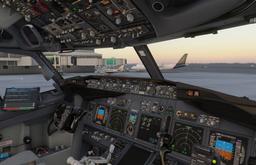
This guide walks through the real workflow — the pages you actually need, in the order you actually use them, with explanations of what each entry does. We're using the Boeing 737 CDU as the reference (PMDG 737 in MSFS, Zibo 737 in X-Plane), because it's the most popular study-level airliner in both sims and the logic transfers directly to other Boeing types.
Practise as you read. Our free 737 CDU Trainer recreates the exact pages below in your browser with guided scenarios. Flying Airbus? Use the A320 MCDU Trainer instead.
Airbus pilots — want the real head-down flow? The MOZA MA3F Flight Computer Display is a hardware A320-style MCDU with a 5.1-inch screen and backlit keypad that mirrors your sim's FMS pages in real time.
Affiliate disclosure: This guide contains affiliate links. If you purchase through these links, SimTuts earns a small commission at no extra cost to you. We only recommend products we genuinely believe improve the flight sim experience.
The Workflow at a Glance
Here's the sequence. Every 737 pilot in the world follows essentially this order:
- IDENT — Verify the database and aircraft type
- POS INIT — Tell the FMC where you are
- ROUTE — Enter your flight plan
- DEPARTURES — Select your SID (departure procedure)
- ARRIVALS — Select your STAR and approach (can do later)
- PERF INIT — Enter weights and performance data
- N1 LIMIT — Set your thrust limits
- TAKEOFF REF — Calculate V-speeds and set flaps/trim
That's it. Eight pages, done in order, and you're ready to fly. Let's go through each one.
1. IDENT Page
How to get there: Press the INIT REF button on the CDU, or it's often the default page on power-up.
This page shows:
- Aircraft model (e.g., 737-800)
- Engine type
- Navigation database date range
What to do: Nothing, usually. Just verify the nav database is current. If the dates shown have expired, your waypoints might be out of date. In the sim, this is rarely an issue unless you're using very old AIRAC data with Navigraph.
Press NEXT PAGE or the appropriate line select key to continue.
2. POS INIT (Position Initialisation)
How to get there: After IDENT, press NEXT PAGE, or select POS INIT from the INIT REF menu.
This page tells the FMC where the aircraft currently is. On a real 737, the IRS (Inertial Reference System) needs a starting position to align.
What to enter:
- REF AIRPORT (Line Select Key 2L): Type your departure airport ICAO code (e.g.,
EGLLfor Heathrow,KJFKfor JFK). Press the line select key next to the field. The FMC now knows where you are.
If you're starting on a gate or runway, this is usually sufficient. The FMC grabs the airport coordinates and uses them for IRS alignment.
What to skip: You can enter exact coordinates if you want precision, but the airport code is fine for sim purposes.
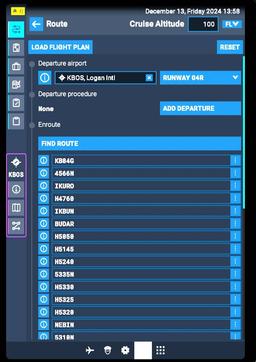
3. ROUTE Page
How to get there: Press the RTE button on the CDU.
This is where you build your flight plan. The route page has two key fields at the top:
ORIGIN (1L): Your departure airport (e.g., EGLL)
DEST (1R): Your destination airport (e.g., KJFK)
Enter both and press NEXT PAGE. Now you're on the route entry page.
Entering the Route
There are three approaches:
Method 1: Airway and waypoint pairs (recommended)
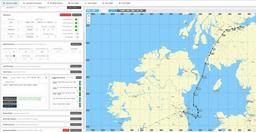
Real flight plans use airways. An airway is a published route between navigation aids, like a motorway between cities. You enter them as pairs:
VIA         TO
----- -------
UA2         TIGER
UN601       KELLY
On the left side, enter the airway name. On the right side, enter the waypoint where you leave that airway. The FMC fills in all the intermediate waypoints automatically.
For the first waypoint (before you're on an airway), you can enter a waypoint name directly on the right side with a blank airway — this is called a "direct to."
Method 2: Company route (COROUTE)
If available, enter a company route code in the CO ROUTE field (LSK 2L, in the left column of the ROUTE page). This loads a pre-stored route. SimBrief users: your OFP (Operational Flight Plan) often includes a company route you can load.
Method 3: SimBrief integration
The PMDG 737 and Zibo 737 both support importing routes from SimBrief. In the PMDG, there's usually an import option in the FMC or the EFB. In the Zibo, check the tablet or the SimBrief downloader. This saves significant typing.
Activating the Route
Once your route is entered, press ACTIVATE (Line Select Key 6R), then EXEC (the illuminated button on the CDU). The EXEC light comes on whenever the FMC has changes pending — you must press it to confirm.
4. DEPARTURES Page
How to get there: From the ROUTE page, press the line select key next to your departure airport, or press DEP/ARR on the CDU.
What to select:
- SID (Standard Instrument Departure): Choose the published departure procedure for your runway. The SID tells you which route to follow after takeoff.
- Runway: Select your departure runway.
- Transition: If the SID has transitions (different routes to join an airway), select the appropriate one.
After selecting, press EXEC to confirm. The FMC adds the SID waypoints to your route.
How to choose a SID: Use your approach chart or SimBrief OFP. The OFP will specify the SID name and transition. If you're not sure, pick the SID that matches your initial routing direction and the active runway.
5. ARRIVALS Page
How to get there: From DEP/ARR, switch to the arrival side, or select your destination airport.
What to select:
- STAR (Standard Terminal Arrival Route): The published route for arriving at the destination.
- Approach: The approach type and runway (e.g., ILS 27L).
- Transition: How you connect from the en-route phase to the STAR.
You can set this up now or later in cruise. Many real pilots enter the STAR and approach during cruise when they have the destination weather and runway information.
Press EXEC to confirm.
6. PERF INIT (Performance Initialisation)
How to get there: Press the INIT REF button, then go to PERF INIT (or navigate from the IDENT page).
This page is where you enter the numbers that define how the aircraft will fly. It's the most important page for accurate FMC performance.
What to enter:
-
ZFW (Zero Fuel Weight) — 3L: Your aircraft weight without fuel. The FMC calculates gross weight automatically from ZFW + fuel loaded. Enter it in thousands of pounds (e.g.,
120.0for 120,000 lbs). SimBrief provides this number. -
RESERVES — 4L: Fuel reserves in thousands of pounds. This tells the FMC how much fuel you need to keep in reserve (it uses this for fuel planning displays). Typically 3,000-5,000 lbs for a domestic flight.
-
COST INDEX — 5L: A number from 0 to 500 that tells the FMC how to balance fuel economy versus time. 0 = fly as slow as possible to save fuel. 500 = fly as fast as possible, fuel be damned. Typical values: 25-40 for fuel-conscious operations, 50-80 for normal operations.
-
CRZ ALT (Cruise Altitude) — 1R: Your planned cruise altitude (e.g.,
FL350or35000). This affects climb and descent calculations.
What you can skip: The ISA DEV (temperature deviation) and other fields have defaults that work for most flights.
7. N1 LIMIT Page
How to get there: From PERF INIT, press NEXT PAGE (or go to N1 LIMIT from INIT REF).
This page sets your thrust limit for takeoff.
Options:
- TO — Full takeoff thrust
- TO 1, TO 2 — Reduced thrust (de-rate) settings
For normal operations, select TO (full thrust) or a de-rate if your runway is long and your aircraft is light. Reduced thrust saves engine wear but requires more runway.
The assumed temperature field allows further thrust reduction. For sim flying, using full TO thrust is perfectly fine.
Press EXEC if you make changes.
8. TAKEOFF REF Page
How to get there: From N1 LIMIT, press NEXT PAGE.
This is the final page before you're ready to fly. It calculates your critical speeds.
What to enter:
-
FLAPS (1L): Your takeoff flap setting. Typical values for the 737: 1, 5, 10, 15, or 25. For most takeoffs, Flaps 5 is a good default. Heavy or short runway? Use more flaps. Light and long runway? Use fewer.
-
CG (Centre of Gravity) (3L): Enter the CG as a percentage. SimBrief provides this, or use the default (typically around 25%).
What the FMC calculates:
- V1 — Decision speed (abort takeoff before this, continue after)
- VR — Rotation speed (pull back on the stick)
- V2 — Takeoff safety speed (minimum speed if an engine fails)
These speeds appear on the page. Verify they look reasonable (V1 around 130-150 knots for a normal 737 takeoff, VR a few knots higher, V2 a few more).
The V-speeds are also displayed on your PFD speed tape as bugs (markers). If they don't appear, make sure you've pressed EXEC.
Set the trim: The TAKEOFF REF page also displays the recommended stabiliser trim setting. Set this on the trim wheel in the cockpit.
Get flight sim tips in your inbox
New guides, checklists, and tips. No spam. Unsubscribe any time.
After Programming: What to Verify
Before taxi, do a quick sanity check:
- LEGS page: Press LEGS on the CDU and scroll through your route. Does it make sense? Do the waypoints match your flight plan? Is the SID there? The STAR?
- Route on the ND: Look at the Navigation Display (the map). Does the magenta line go where you expect?
- V-speeds on the PFD: Are V1/VR/V2 displayed as bugs on the speed tape?
- Fuel: Is the fuel quantity in the FMC close to your actual fuel load?
What LNAV and VNAV Actually Do
Once airborne, the FMC flies your route through two autopilot modes:
LNAV (Lateral Navigation): Follows the horizontal route — the magenta line on your map. It sequences through waypoints, flies airways, and handles turns.
VNAV (Vertical Navigation): Manages your altitude — climbs at the correct speed, levels off at cruise altitude, descends at the right point with the right speed. VNAV uses the performance data you entered (cost index, weights) to calculate the optimal climb and descent profiles.
Together, LNAV and VNAV can fly the entire flight from after takeoff to just before landing. Your job is to monitor, manage ATC instructions (altitude and heading changes), and configure for approach and landing.
The Airbus Difference (Brief Note)
If you're flying the A320 (FBW in MSFS, ToLiss in X-Plane), the system is called the MCDU (Multipurpose Control and Display Unit) and the computer is the FMGC, but the workflow is remarkably similar:
- INIT page — Enter departure, destination, flight number, cost index
- F-PLN page — Build or import your route
- PERF page — Enter weights, takeoff configuration, V-speeds
The Airbus enters V-speeds manually (you calculate or get them from a performance table), while the Boeing calculates them for you. The Airbus is more "you tell me the numbers," while the Boeing is more "I'll calculate the numbers for you."
Both get you to the same place: a programmed route with performance data, ready to fly.
Common Mistakes
Forgetting to press EXEC. The FMC stages changes — they don't take effect until you press EXEC. If the EXEC light is on, you have uncommitted changes. Press it.
Wrong weights. Entering zero fuel weight when the FMC wants gross weight (or vice versa) gives wildly wrong V-speeds. Check what the field is asking for and use the matching number from SimBrief.
Not entering the CG. Without a CG entry, the FMC may not calculate trim or V-speeds. It's a common "why are my speed bugs missing?" culprit.
Skipping PERF INIT. The route works without performance data, but VNAV won't function correctly. You'll get no climb speed, no descent point, and no speed management. The FMC is only as smart as the data you give it.
Entering the route but not the SID/STAR. Flying "direct" to every waypoint without a SID means you miss the published departure procedure. ATC expects you to follow the SID — it's not optional.
Over-relying on SimBrief import. Importing is great for getting the route in quickly, but you still need to verify the PERF INIT data, select the correct SID/STAR/approach, and check the V-speeds. The import is a shortcut, not a replacement for the workflow.
FMC programming is one of those skills that clicks with hands-on repetition. If the CDU still feels like a mystery, run through the guided scenarios in our free 737 CDU Trainer — or the A320 MCDU Trainer if you fly Airbus. Thirty minutes of guided practice beats hours of trial and error.