Microsoft Flight Simulator 2024 arrived on PlayStation 5 and PS5 Pro on 8 December 2025, and for most console players the entire sim runs off a single DualSense controller. That is a very different starting point from the PC crowd with their yokes and throttle quadrants. The good news is the DualSense is genuinely capable once you understand how it maps to a cockpit. The bad news is the defaults will fight you for the first hour, especially the cursor.
This guide is the deep dive on controls specifically. If you are brand new to the sim on PS5, start with our PS5 beginner guide for your first flights, then come back here to actually master the controller. We are going to cover the default button scheme, the famous cursor sensitivity fix, every DualSense-specific feature and whether it is worth using, how to remap and save profiles, and the big one: flying an airliner like the A320 with nothing but a pad in your hands.
What does every DualSense button do in MSFS 2024?
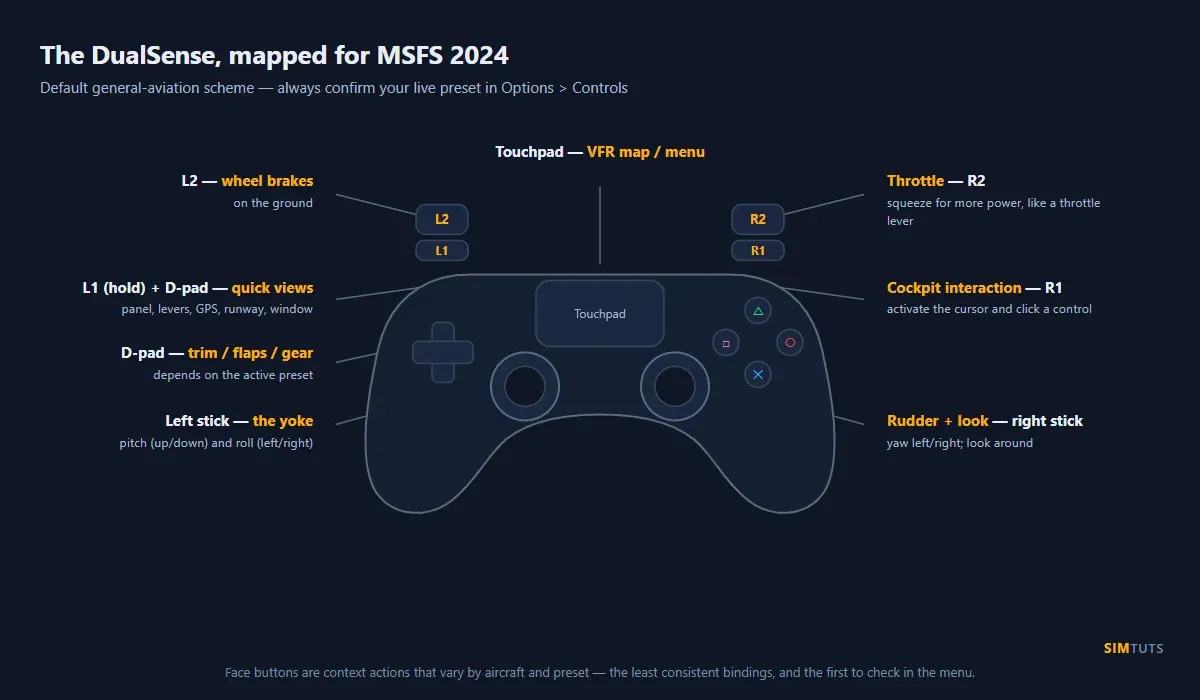
The DualSense drives an aircraft through two thumbsticks and the triggers, with the buttons handling secondary functions and cockpit interaction. The left stick flies the aeroplane, the right trigger is throttle, the left trigger is brakes on the ground, and the shoulder buttons handle views and clicking switches. Everything else is remappable in Options.
Here is the default scheme for a typical general-aviation aircraft. One important caveat: Asobo adjusts default bindings between Sim Updates, and the named buttons can differ between the factory preset and any accessibility or user preset you load. Always confirm your live mapping in Options > Controls > (your controller) rather than trusting any printed list, including this one.
| DualSense input | Default action |
|---|---|
| Left stick | Pitch (up/down) and roll (left/right) |
| Right stick | Rudder (left/right) and look around |
| R2 | Throttle — squeeze for more power |
| L2 | Wheel brakes on the ground |
| L1 (hold) + D-pad | Quick camera views (panel, levers, GPS, runway, window) |
| R1 | Cockpit interaction — activate the cursor and click a control |
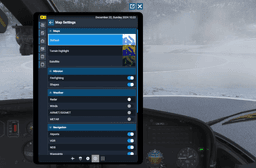
| Touchpad | Toggle the VFR map / menu |
| Options | Pause and open the menu |
| Cross / circle / square / triangle | Context actions that vary by aircraft and preset |
| D-pad (without L1) | Trim, flaps or gear depending on the active preset |
The mental model that matters: the left stick is the yoke, the right trigger is the throttle lever, and the shoulder buttons are your hands reaching into the cockpit. Once that clicks, the rest is muscle memory. Face-button and D-pad assignments are the ones most worth checking in the menu, because they are the least consistent across aircraft and presets.
Why is the cockpit cursor so sensitive, and how do I fix it?
The default cursor in MSFS 2024 on PS5 is wildly oversensitive, and the fix lives in the Accessibility menu, not the Controls menu. Go to Settings > Accessibility > Effects and Animations > Cursor Settings and lower both Max Speed and Cursor Acceleration. This is the single most impactful change you can make in your first ten minutes.
Because the sim relies so heavily on cockpit interaction — clicking switches, knobs and levers with an on-screen pointer — the cursor effectively becomes your mouse. Out of the box it flies across the screen and blows straight past the switch you were aiming for. Lowering Max Speed caps how fast the cursor can travel, and lowering Cursor Acceleration stops it from ramping up when you push the stick a little harder. Dial both down until slow, deliberate stick movements produce slow, deliberate cursor movements.
Do this on the ground with a parked aircraft so you can practise clicking things without any time pressure. Get it feeling right before you ever try to reach for a switch in the air. Most players end up with Max Speed noticeably below the default and acceleration cut hard; tune to taste, because hand steadiness varies from person to person.
One more setting sits right alongside this: under the same Accessibility menu, make sure Allow 2D cursor on all peripherals is turned ON. By default it can be off, which limits your ability to assign cockpit-interaction commands to the controller. Turn it on so the DualSense can drive the cursor properly.
What are Lock and Legacy interaction modes, and which should I use?
MSFS 2024 has two cockpit interaction systems, called Lock and Legacy, and the setting lives under Flight Interface > Cockpit Camera as "Cockpit interaction system." Lock is the modern default: it highlights interactive cockpit elements and locks your cursor onto them, which is the friendlier option for a controller. Legacy is the older free-cursor behaviour without the highlights.
In Lock mode, when your cursor is near a switch or knob the sim snaps the interaction to it and shows a highlight, so you do not have to be pixel-perfect with the stick. That forgiveness is exactly what you want on a thumbstick, which is why Lock is the sensible choice for the vast majority of DualSense players. Legacy removes the blue highlights and lets you sweep the view around without "snagging" on controls, which some long-time simmers prefer.
There is an important honesty note here for console players: on consoles the Legacy option has been unreliable. Players have reported that on console the setting either cannot be selected properly or reverts to Lock after you leave the preferences screen (this was still an open issue in late 2025). So the practical advice on PS5 is to stay on Lock, tune your cursor speed as above, and not fight the sim to force Legacy. Lock plus a well-tuned cursor is a better experience than a half-working Legacy mode.
Which DualSense features actually work in the sim?
Asobo built MSFS 2024 to use the DualSense's headline features, and four of them are genuinely part of the flying experience: adaptive triggers, the controller speaker for ATC, gyro controls, and the touchpad and lightbar. None of them are gimmicks you have to hunt for; they are on by default and you can tune or disable them.
Adaptive triggers. The triggers change their resistance based on aircraft state — they respond to different speeds and surface types on the ground and give a sloped resistance in the air. In practice you feel the throttle push back differently on a fast takeoff roll versus a gentle taxi, which gives you a physical sense of throttle position you do not get on an Xbox pad.
Controller speaker for ATC. Air traffic control communications play through the small speaker built into the DualSense, like a tinny radio in the cockpit. It sounds odd at first and then becomes surprisingly immersive. If you find it distracting, you can turn the controller speaker volume down or off in the PS5's own audio settings and route ATC back through your TV or headset.
Gyro controls. The gyroscope lets you tilt the whole controller like a yoke for fine roll (and pitch) inputs. It is customisable — you can set its sensitivity, neutral position, dead zone and extremity dead zone — so you can make it as subtle or as aggressive as you like. Many players leave it off while learning because it adds a second control surface to think about, then enable it later for delicate corrections on approach. Try it, but do not feel obliged to keep it.
Touchpad and lightbar. The touchpad is customisable and by default handles map/menu duties, and the lightbar is supported for immersion. These are the least critical features but they are there.
Get flight sim tips in your inbox
New guides, checklists, and tips — no spam. Unsubscribe any time.
How do I switch between flying and clicking cockpit switches?
You switch into cursor mode to interact with the cockpit, then switch back out to fly. On the DualSense the cockpit-interaction control (R1 by default) brings up the cursor so you can point at a switch and click it; the exact button that toggles the cursor on and off can vary by preset, so check the "cockpit interaction" and any "toggle cursor" bindings in Options > Controls.
The workflow in Lock mode is: bring up the cursor, move it near the switch, knob or lever you want, and confirm the interaction. The highlight tells you the sim has grabbed the right control. For rotary knobs you nudge up or down; for switches and buttons you click. When you are done, drop out of cursor mode so the sticks go back to flying the aircraft instead of moving a pointer.
The reason the earlier cursor tuning matters so much is that this is a constant loop in any complex aircraft — set a radio frequency, flip an anti-ice switch, arm the autopilot. If your cursor is twitchy, every one of those interactions is a fight. Fix the cursor first and this whole loop becomes smooth. And remember the Allow 2D cursor on all peripherals setting has to be on for these controller interactions to work as intended.
How do the camera and quick views work on the controller?
Camera and quick views are driven mainly by the L1 shoulder button held together with the D-pad. Holding L1 and pressing a D-pad direction snaps you to a preset view — the instrument panel, the throttle levers, the GPS/avionics screen, a runway check, or a look out of the side window. These are your fastest way to get eyes on the right part of the cockpit at the right moment.
Quick views are the difference between a calm approach and a panicked one. Snap to the panel to check your speed and altitude, snap to the levers when you are managing flaps and gear, snap to the GPS when you are navigating, then snap back to the forward view to land. The right stick handles free look and moving your head around the cockpit when you are not using a preset.
If the cockpit/external view toggle is not on a button you like, you can reassign it: open Controls, select your controller, show all commands so unassigned actions appear, search for the cockpit or external view command, and bind it to a free button. Because named buttons differ between presets, always assign it within the preset you actually fly with.
Photo: Chris Woodrich, CC BY-SA 4.0, via Wikimedia Commons
How do I remap buttons and save a control profile on PS5?
MSFS 2024 uses a layered profile system, and the golden rule is to duplicate the default preset before you change anything. Open Options > Controls, select the DualSense, use the gear/options icon next to the profile name to Duplicate, give the copy a clear name, and edit only the copy. Never edit the factory default directly.
The sim layers control profiles in three tiers, and what you see in the Controls menu is the merged result for whatever aircraft is loaded:
- General Controls — applied everywhere (UI, camera, pause).
- Aircraft Type Controls — applied to a category, so one set for aeroplanes, another for helicopters.
- Specific Aircraft Controls — applied only to that exact model.
This layering is why bindings can appear to "change" when you switch aircraft — you are looking at a different merged profile, not a broken one. To stop that surprise, once your duplicated profile is set up the way you want, use Apply to All Aircraft so the sim loads your custom profile automatically instead of quietly swapping you back to a default. Name your profiles clearly, something like Mine - DualSense - GA and Mine - DualSense - Airliner, so you always know which one is active. This same profile system and workflow is covered in more depth, with troubleshooting for when bindings seem to vanish, in our controls not working fix guide.
Can I fly an airliner like the A320 with just a controller?
Yes — you can fly an Airbus A320 end to end on a DualSense, because on an airliner the autopilot does most of the flying and your job is managing it through the cockpit cursor. The trick is that you barely hand-fly at all: you take off, engage the autopilot, and then interact with the FCU (the autopilot control panel) and the MCDU (the flight computer) using the cursor rather than the sticks.
A few things make controller-only airliner flying much smoother:
- Rebind autopilot disconnect. The default "Toggle Autopilot Master" command has a known quirk on some Airbus add-ons (including the popular iniBuilds A320) where it engages the autopilot but will not cleanly disengage it. Bind a button to Toggle Disengage Autopilot instead so you can always drop the autopilot instantly when you need to.
- Understand FCU push and pull. On the Airbus FCU, the Speed, Heading, Altitude and Vertical Speed knobs work by push and pull: push a knob in for managed mode (the aircraft follows the flight plan), pull it out for selected mode (you dial the value yourself). You do this with the cursor, so a well-tuned cursor is essential here.
- Complete the flight plan in the MCDU. Managed modes only work if the flight plan in the MCDU is complete with no route discontinuities. If managed navigation refuses to engage, that is almost always the cause.
This is exactly where a controller player benefits from practising the panels outside a live flight. Our free browser-based MCDU trainer lets you drill the flight-plan and performance pages of the Airbus MCDU without spinning up the sim, so when you are in the cockpit with only a cursor you already know which buttons to press. For the theory behind the autopilot modes — HDG, NAV, VNAV, APR and the rest — read our MSFS 2024 autopilot guide, and for a full page-by-page walkthrough of the Airbus flight computer see the A320 MCDU explained. Learn those three references and the DualSense stops being a limitation for airliners.
Can I use a keyboard and mouse on PS5?
MSFS 2024 on PS5 is built and balanced around the DualSense, and full keyboard-and-mouse support is not officially documented or confirmed as a supported input method for the sim.
The PS5 console itself does accept keyboards and mice at the system level — wired over USB, via a wireless USB dongle, or over Bluetooth — but that is a platform capability, not a promise that MSFS handles them the way the PC version does.
Realistically, treat the DualSense as your primary input on PS5 and do not buy a mouse specifically to click cockpit switches until Asobo documents proper support. Mouse behaviour inside the cockpit has been an inconsistent, buggy area across every version of the sim, and on console it is not something to rely on. If you want precise cockpit interaction on PS5 today, the better investment is ten minutes tuning the cursor speed and learning the interaction loop above.
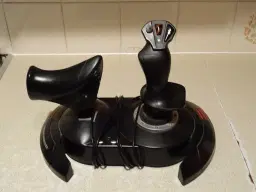
As for flight peripherals: PS5 support is limited compared to PC. Reviewers testing the PS5 version found their PC flight sticks and yokes were not compatible, so for most players the realistic choice is the DualSense. Check our PS5 beginner guide for the current state of officially supported console flight hardware before spending anything.
Where to go next
Once the controller feels natural, the sim opens up fast. These guides build on what you have set up here:
- MSFS 2024 PS5 beginner guide — your first ten flights on a DualSense.
- MSFS 2024 beginner guide — the broader cross-platform companion.
- How to use the autopilot — essential before you fly anything with a glass cockpit.
- The A320 MCDU explained — program the Airbus flight computer step by step.
- Controls not working? — fix profiles that swap, reset, or seem to vanish.
Frequently asked questions
How do I fix the oversensitive cursor on PS5?
Go to Settings > Accessibility > Effects and Animations > Cursor Settings and lower both Max Speed and Cursor Acceleration. The default cursor is far too fast for clicking cockpit switches with a thumbstick. Tune it on the ground with a parked aircraft until slow stick movements give slow cursor movements, then leave it. Also turn on "Allow 2D cursor on all peripherals" in the Accessibility menu.
Does the DualSense speaker really play ATC?
Yes. Air traffic control communications play through the small speaker built into the DualSense, like a radio in the cockpit. It is on by default. If you find it distracting you can lower or mute the controller speaker in the PS5's system audio settings and route ATC through your TV or headset instead.
What do the adaptive triggers do in MSFS 2024?
The adaptive triggers change resistance based on the aircraft's state — they respond to different speeds and surface types on the ground and give sloped resistance in the air. You feel the throttle push back differently on a fast takeoff roll than on a slow taxi, which gives you a physical sense of where the throttle is set.
Should I use Lock or Legacy interaction mode on PS5?
Use Lock. It highlights and snaps to interactive cockpit controls, which is far more forgiving on a thumbstick than the free-cursor Legacy mode. On consoles the Legacy option has been unreliable and has reverted to Lock for many players, so there is no practical reason to fight it. Lock plus a well-tuned cursor is the best controller experience.
Can I really fly an airliner with only a DualSense?
Yes. On an airliner the autopilot does most of the flying and you manage it through the cockpit cursor. Take off, engage the autopilot, and control the FCU and MCDU with the cursor. Rebind autopilot disconnect to "Toggle Disengage Autopilot" for reliability, remember the Airbus FCU push-for-managed / pull-for-selected logic, and keep your MCDU flight plan free of discontinuities.
How do I stop my bindings changing when I switch aircraft?
They are not really changing — MSFS layers General, Aircraft Type and Specific Aircraft profiles and shows you the merged result. Duplicate the default controller preset, edit the copy, then use Apply to All Aircraft so your custom profile loads automatically for every plane. Name your profiles clearly so you always know which one is active.
Is gyro control worth turning on?
It depends on how you like to fly. Gyro lets you tilt the controller for fine roll and pitch, and it is fully tunable for sensitivity and dead zones. Many players learn with it off to keep things simple, then enable it later for delicate corrections on approach. Try it, but there is no penalty for leaving it off.