Live weather is the single most complained-about system in Microsoft Flight Simulator 2024, and it's easy to see why. One day it drops you into a photoreal thunderstorm exactly where the real one is sitting; the next day it shows glassy clear skies over an airport that's reporting driving rain and a 300-foot ceiling. Add the occasional server outage — like the one on 22 May 2026 that took live weather down across both MSFS 2020 and 2024 — and it's no wonder the forums are full of "live weather is broken" threads.
This guide does three things. First, it explains how the system actually works under the hood, so you understand what you're looking at. Second, it explains why the depicted weather so often disagrees with reality — the reasons are mostly structural, not bugs. Third, it gives you a concrete, ordered troubleshooting flow for when live weather genuinely stops working, on PC, Xbox and PS5.
How does live weather actually work in MSFS 2024?
MSFS 2024 live weather is built on a real meteorological model supplied by meteoblue, a Swiss weather company that has partnered with Microsoft since around 2018 (the partnership launched with MSFS 2020 and carries straight over to 2024). It is not a canned animation — it's an attempt to reconstruct the real atmosphere from actual data.
The scale is genuinely enormous. meteoblue divides the Earth's surface into roughly 250 million grid boxes and stacks 60 vertical atmospheric layers from the surface up into the stratosphere. Into that grid it feeds temperature, pressure, humidity and wind vectors, then MSFS renders the result as volumetric clouds, wind and precipitation you can fly through. meteoblue says it has pushed its update cadence down over the years — from daily data in 2020 to hourly and "lately 15-minute intervals," driven by real-time satellite imagery and measurements.
Two things matter for understanding everything that follows:
- The sim samples the feed; it doesn't stream it continuously. When you load a flight with Live Weather selected, the sim pulls the current model state for your area and injects it. It refreshes periodically, but it is not a live video feed of the sky. A session you loaded an hour ago can be running on data that's now stale.
- The volumetric model — not the airport METAR — drives what you see. Near airports the system uses airport-focused forecast data, and the in-sim ATIS/METAR is derived from that. But the clouds, precipitation and winds you actually fly through come from the gridded model. That distinction is the root of almost every "it doesn't match" complaint below.
Why does the weather in the sim not match what's happening outside?
Because a global forecast grid and a single-point real-world observation are two different things, and the sim shows you the grid. A METAR is a precise measurement at one airport at one moment; the meteoblue model is a smoothed, interpolated picture of the whole planet. When they disagree — and near active weather they often do — you fly through the model, not the METAR.
Here are the specific, recurring reasons the depicted weather looks wrong:
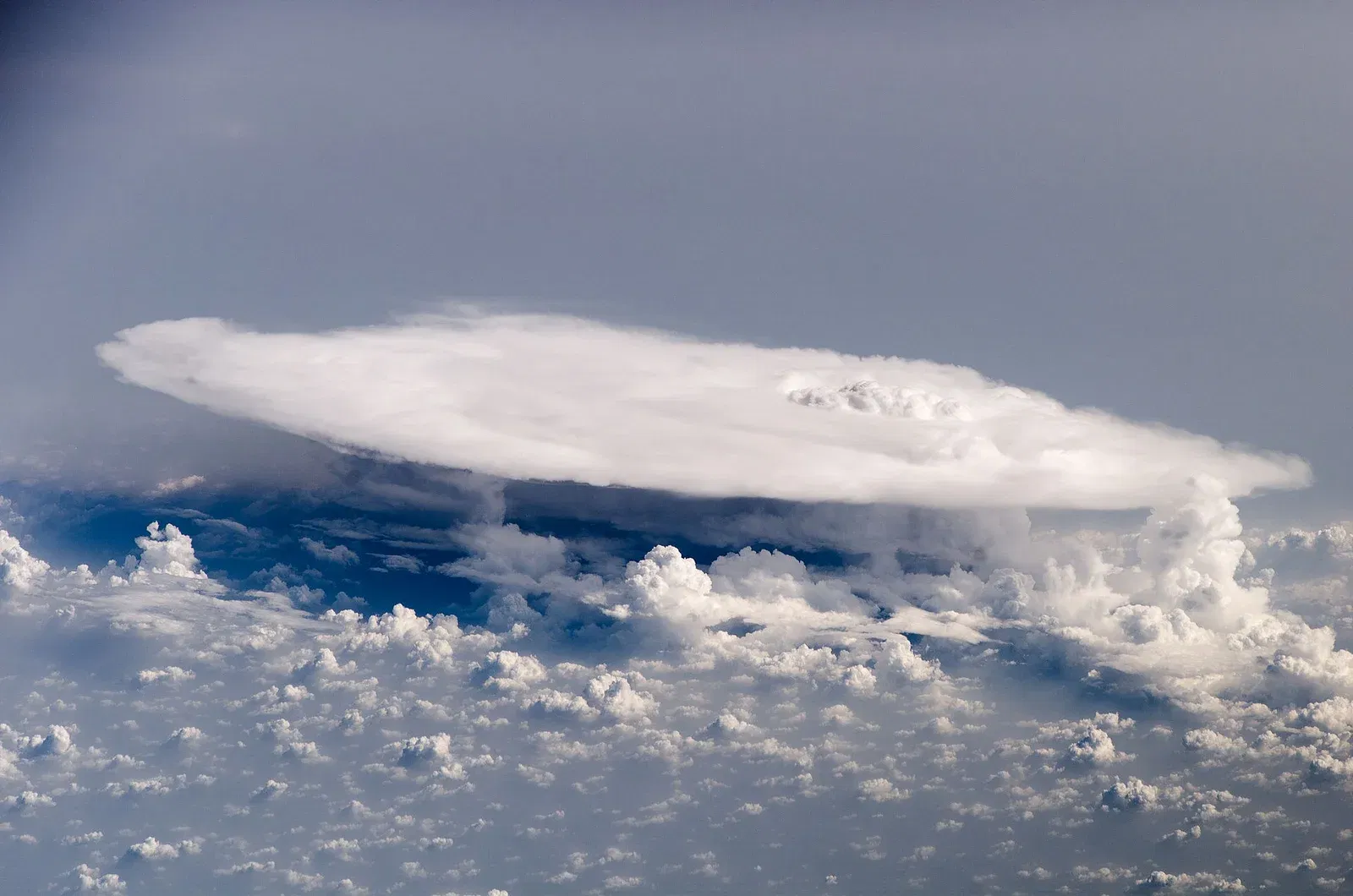
- Convective weather gets flattened. This is the biggest and longest-standing complaint. Thunderstorms and towering cumulonimbus are notoriously under-depicted: forum reports through 2026 describe METARs reporting thunderstorms and heavy rain while the sim shows only scattered cumulus and no precipitation. A real, well-documented example: pilots flying a major thunderstorm over Paris found the sim showing near-clear skies. The model tends to smear sharp convective cells into generic cloud.
- Resolution limits. Even 250 million grid boxes is coarse compared to a tight storm cell or a bank of coastal fog. Small, sharp features get averaged out. A ceiling that's genuinely ragged and local can render as a smooth, uniform layer.
- Injection and refresh delay. Weather moves. If your data was sampled 30–60 minutes ago and a front has since pushed through, the sim is showing you the past. This is normal, not a fault — but it means "the sim is wrong" is often really "the sim is late."
- Model vs observation, fundamentally. meteoblue is running a forecast/analysis model. Real METARs are ground truth. Where the model's analysis diverges from what a station actually measured, you get a mismatch in wind, visibility or cloud base even when everything is "working."
None of these means your install is broken. If the sky in the sim is plausible weather but not today's exact weather, that's the system behaving as designed. The troubleshooting flow further down is for when it's genuinely not loading at all — flat clear skies everywhere, or conditions frozen from a previous session.
Photo: NASA, public domain, via Wikimedia Commons
How do I check that live weather is actually turned on?
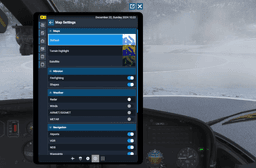
The most common "live weather not working" report is simply that it isn't selected. There are two independent switches, and both have to be on: the online data service in your settings, and the Live Weather preset on the flight setup screen.
Check them in this order:
- Online functionality and data. Open Options > General and find the Data (labelled Online on some builds) section. Confirm Online Functionality is enabled and that the Live Weather / weather data service is on. If online functionality is off, you get no live weather, no photogrammetry and no multiplayer — a useful tell.
- The weather preset itself. On the world map / flight setup screen, the weather selector must read Live Weather, not a leftover preset such as Clear Skies, Few Clouds or a Custom setup. It's very easy to load a saved flight or a mission that quietly forces its own preset. In Sim Update 6's beta, Asobo even fixed a bug where the "Live" button was still selectable while the live weather option was switched off in the online settings — so on some builds the button lied to you.
If both are set correctly and you still get flat, wrong or frozen weather, work the fix flow below.
Get flight sim tips in your inbox
New guides, checklists, and tips — no spam. Unsubscribe any time.
How do I fix live weather when it stops working?
Work these steps in order and change one thing at a time. Most cases are a stale session or a preset that never actually switched to Live — a full restart fixes the majority of them.
1. Reselect Live Weather and restart the flight. Go back to the world map, explicitly pick Live Weather, and start a fresh flight. Restarting the flight is weaker than restarting the sim, but try it first.
2. Fully restart the simulator. Live weather fails quietly, and a full application restart forces a brand-new data request from the server. This is the single highest-yield fix. Close the sim completely — not just back to the menu — and relaunch.
3. Test two airports far apart. Load one flight in, say, London and another in Denver. If both show identical conditions, the feed isn't reaching you and you're seeing a fallback, not real data. If they differ appropriately, live weather is working and your original airport may simply have subtle real conditions.
4. Disable or delete the rolling cache. The rolling cache (default 16 GB, stored at ...AppData\Roaming\Microsoft Flight Simulator 2024\ROLLINGCACHE.CCC) stores streamed world data and can hold onto stale state. Temporarily turn it off in Options > General > Data/Online, or delete the .CCC file, then restart and retest. Clearing it is not usually the first fix — it addresses streamed scenery more than the weather selection — but it's a genuine cause of "stuck" conditions.
5. Strip back the Community folder (PC). Weather helper add-ons, toolbar utilities, avionics mods and traffic tools can all interfere with the weather feed. Move the Community folder contents out temporarily and retest. If that fixes it, add them back in halves to find the culprit — the same bisect technique from the CTD troubleshooting guide.
6. Confirm account, connection and no filtering. Make sure you're signed in and online. On PC, test without a VPN or DNS content filter — both can block the weather servers while leaving the rest of the sim working.
If none of that helps and multiplayer and photogrammetry are also misbehaving, stop troubleshooting your own machine — it's probably a server outage, covered next.
Is it a sim bug or is the live weather server down?
Sometimes it's genuinely not you. MSFS live weather runs on Microsoft/Asobo's online services, and those services do go down. The clearest recent example: on 22 May 2026 live weather broke across both MSFS 2020 and MSFS 2024, and Asobo posted an official incident before deploying a fix that same morning.
Here's how to tell an outage from a local problem:
- Multiple online services fail together. During a real outage, live weather, photogrammetry and multiplayer tend to break at once. If only your weather is off but the rest of the online world streams fine, the problem is more likely local (preset, cache, add-on).
- Everyone's reporting it. Check the MSFS forums' News & Announcements and Weather & Live Weather sections. If a fresh thread with dozens of replies just appeared, it's server-side and there is nothing to fix on your end — wait for the deployment.
- No amount of restarting helps. A local issue usually clears with a clean restart and a re-selected preset. An outage doesn't, no matter what you do.
During an outage the correct move is simply to wait, or switch to a preset or custom weather (below) so you can still fly.
How does live weather work on Xbox and PS5?
Identically to PC, with the same online dependency — MSFS 2024 runs on PC, PS5 and Xbox Series X|S, and all of them pull live weather from the same meteoblue-backed servers. The settings live in the same place: Options > General, in the Data/Online section, where you enable online functionality and set the rolling cache.
Console has one extra trap worth knowing:
- Xbox Quick Resume can serve you stale weather. Quick Resume restores your last session as it was, which means it can bring back an old, frozen weather state instead of requesting fresh data. If your live weather looks stuck on console, fully quit the game rather than resuming, then relaunch and start a new flight. This is the console equivalent of the "fully restart the sim" step on PC.
- Rolling cache still applies. Set it to 32 GB or more if your console has the storage; it reduces pop-in but, as on PC, a stale cache can occasionally hold onto old streamed data.
Everything else — the preset selector, the model-vs-METAR mismatch, the injection delay — behaves exactly as it does on PC.
What are the alternatives if live weather isn't good enough?
Plenty, and they fall into two camps: built-in presets for when you just want a specific look, and third-party engines for when you want more accurate or controllable weather than live gives you.
Built-in presets and custom weather. Every flight setup screen offers presets — Clear Skies, Few Clouds and others — plus a Custom editor where you set cloud layers, wind, temperature, pressure and precipitation by hand. This is the reliable fallback during an outage, and it's what you want for repeatable practice. If you're drilling crosswind landings, dialling in a fixed 20-knot crosswind with custom weather is far more useful than hoping live weather delivers one.
Historical weather. MSFS 2024 can also reconstruct conditions from a past date and time rather than "now." Set the date/time back and you get the modelled weather for that moment — handy for recreating a specific real-world flight.
Active Sky FS (HiFi Simulation Technologies). Yes, a proper third-party weather engine exists for MSFS 2024 in 2026. Active Sky FS added MSFS 2024 support in build B9090 (November 2024) and is dual-compatible with MSFS 2020 and 2024 — existing Active Sky FS owners got 2024 support with no upgrade fee. It layers its own weather depiction and data handling over the sim and is the usual recommendation for simmers who find stock live weather too smoothed-out, especially around convective weather. (As of its late-2025 changelog it was actively tracking sim updates; check HiFi's site for the build that matches your current sim version before buying.)
Parallel 42 "Typical Weather". A different idea: Typical Weather for MSFS 2024 (PC and Xbox) generates climatologically plausible conditions for a region and season rather than pulling the real-time feed. It's not real-world-accurate by design — it's for when you want believable, varied weather without depending on the live servers at all.
For long flights where the weather at your destination matters hours ahead, none of these replaces good pre-flight planning — see the long-haul flight guide for how to brief destination and alternate weather before you even push back.
What is Sim Update 6 changing for weather?
Sim Update 6 is in beta as of July 2026 (first beta build v1.8.5.0, 6 July 2026; a follow-up 1.8.8.0 landed 16 July), so treat everything here as beta-state and subject to change before final release. It is not a live-weather-accuracy overhaul — the fixes are mostly around the weather UI and edge-case bugs:
- Fixed the "Live" button being selectable even when the live weather option was switched off in the online settings.
- Fixed being unable to hide cloud weathers in Free Flight when not using live weather.
- Fixed visibility data displaying incorrectly in Free Flight when showing a flight plan with live weather.
- Fixed a local weather desync where a non-group-leader opening the weather panel could desync the whole multiplayer group.
- EFB weather TAF now correctly shows how conditions evolve over time (the
BECMGandFMchange groups). - Garmin G3000/G5000 weather radar gained tilt and bearing control, with automatic stabilization disabled when AHRS attitude data isn't available.
Notably, SU6's headline items are elsewhere — DLSS 4.5 as the default upscaler and an optional walkaround skip — so if your main complaint is convective weather realism, SU6 beta doesn't appear to change that. Don't install a beta build on your main install if stability matters to you; wait for the stable release.
How do I read METARs in the sim and check them against reality?
Read the in-sim METAR or ATIS for the sim's version of conditions, then pull the real-world METAR from an aviation weather site and compare the two directly. This is the fastest way to know whether live weather is genuinely off or just showing subtle conditions you didn't notice.
In the sim, you get conditions from ATIS (tune the ATIS frequency) and from the in-sim weather/METAR readouts on the world map and in EFB tools. That's the sim's interpretation of the meteoblue data for that airport.
In the real world, two sources cover the whole planet:
- aviationweather.gov — the US NOAA Aviation Weather Center. US-government run, but it serves global METARs and TAFs, and it's the canonical source.
- metar-taf.com — a clean, international-friendly site that's easy to read at a glance and covers airports worldwide.
Pull the real METAR for your departure airport and line it up against the sim: wind direction and speed, visibility, cloud base, temperature/dew point and pressure. If they broadly agree, live weather is working. If the real METAR says TS +RA BKN008 (thunderstorm, heavy rain, broken cloud at 800 ft) and the sim gives you scattered fair-weather cumulus, you've just confirmed the convective-under-depiction problem rather than a broken install.
The QNH trap: hPa vs inHg
One reading trips up international flyers constantly: pressure units. Standard pressure is 1013.25 hPa, which is exactly 29.92 inHg. Most of the world sets altimeters in hectopascals (hPa/mb); the US and Canada use inches of mercury (inHg).
MSFS 2024's ATIS reports QNH in hPa. If you learned to fly in a US-centric setup and expect to hear "two-niner-niner-two," a European ATIS reading "QNH 1013" can look wrong when it's identical. When you compare the sim against a real METAR, watch the units: a US METAR gives altimeter as A2992 (29.92 inHg), while a European or Asian METAR gives Q1013 (1013 hPa). They're the same pressure — don't "correct" your altimeter to fix a mismatch that doesn't exist. Set your altimeter to whatever the local report gives (hPa in most of the world, inHg in North America) and the two systems will agree.
Visibility carries the same regional split: a US METAR reports statute miles (10SM ≈ 16 km), while most of the world reports metres (9999 means 10 km or more, 1500 means 1,500 m / about 1 mile). If your in-sim visibility "feels wrong," check whether you're comparing miles against metres.
Quick reference: what to do when live weather looks wrong
- Is it plausible weather, just not today's exact weather? That's the model working as designed — resolution, delay and convective smoothing. Not a bug.
- Flat clear skies everywhere / frozen conditions? Confirm Live Weather is selected and online data is enabled, then fully restart the sim.
- Still stuck? Disable/delete the rolling cache, strip the Community folder, check you're online without a VPN/DNS filter.
- On Xbox? Fully quit — don't Quick Resume.
- Everything online broken at once? It's a server outage; check the forums and wait, or fly a preset in the meantime.
- Want accuracy live weather can't give? Look at Active Sky FS; want offline believable weather, look at Parallel 42 Typical Weather; want repeatable practice, use Custom weather.
- Numbers look off? Compare the in-sim METAR against aviationweather.gov or metar-taf.com — and mind hPa vs inHg before you decide anything is wrong.
Live weather in MSFS 2024 is ambitious, occasionally spectacular and genuinely unreliable at the edges — especially around storms. Knowing which category your problem falls into (working-as-designed, local fault, or server outage) is most of the battle. For the deeper setup that keeps the whole streaming pipeline healthy, including the data and cache settings that live weather shares, see the graphics and performance settings guide.